
Create Groups
Please note that this document will be updated periodically.
This feature is only available to Premium+, Business, or Enterprise users. To upgrade your account, please go to User Subscription.
Start Group Creation
How to start group creation
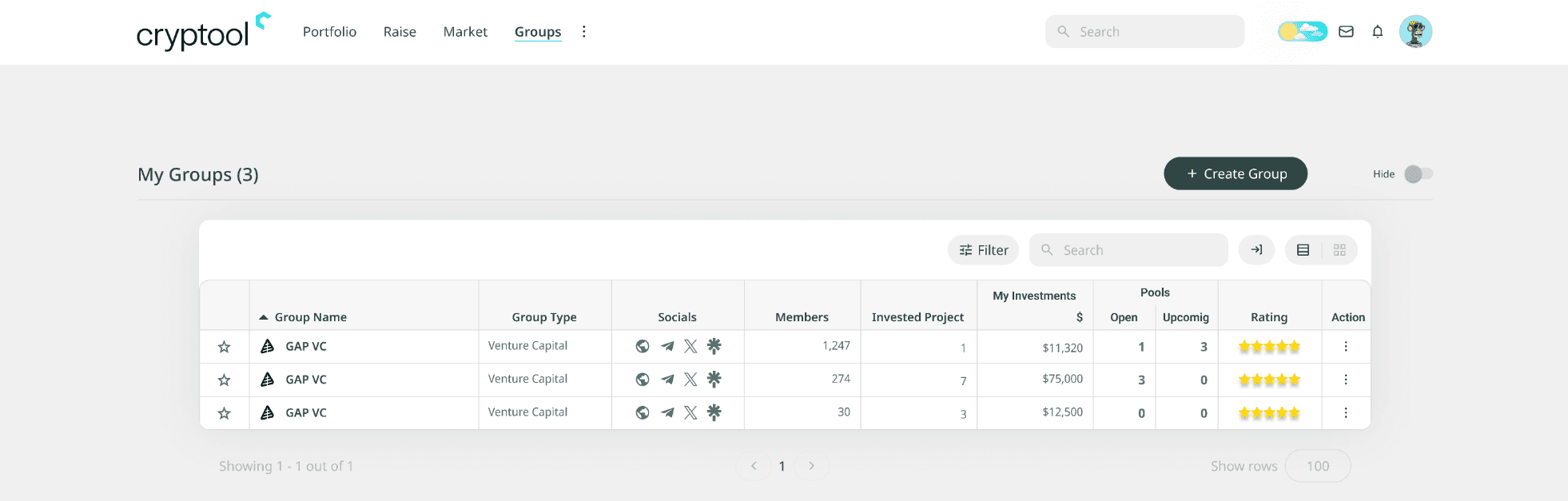
Click on Groups in the main menu, and then click Create Group on the top right.
Create the Group
How to create a group
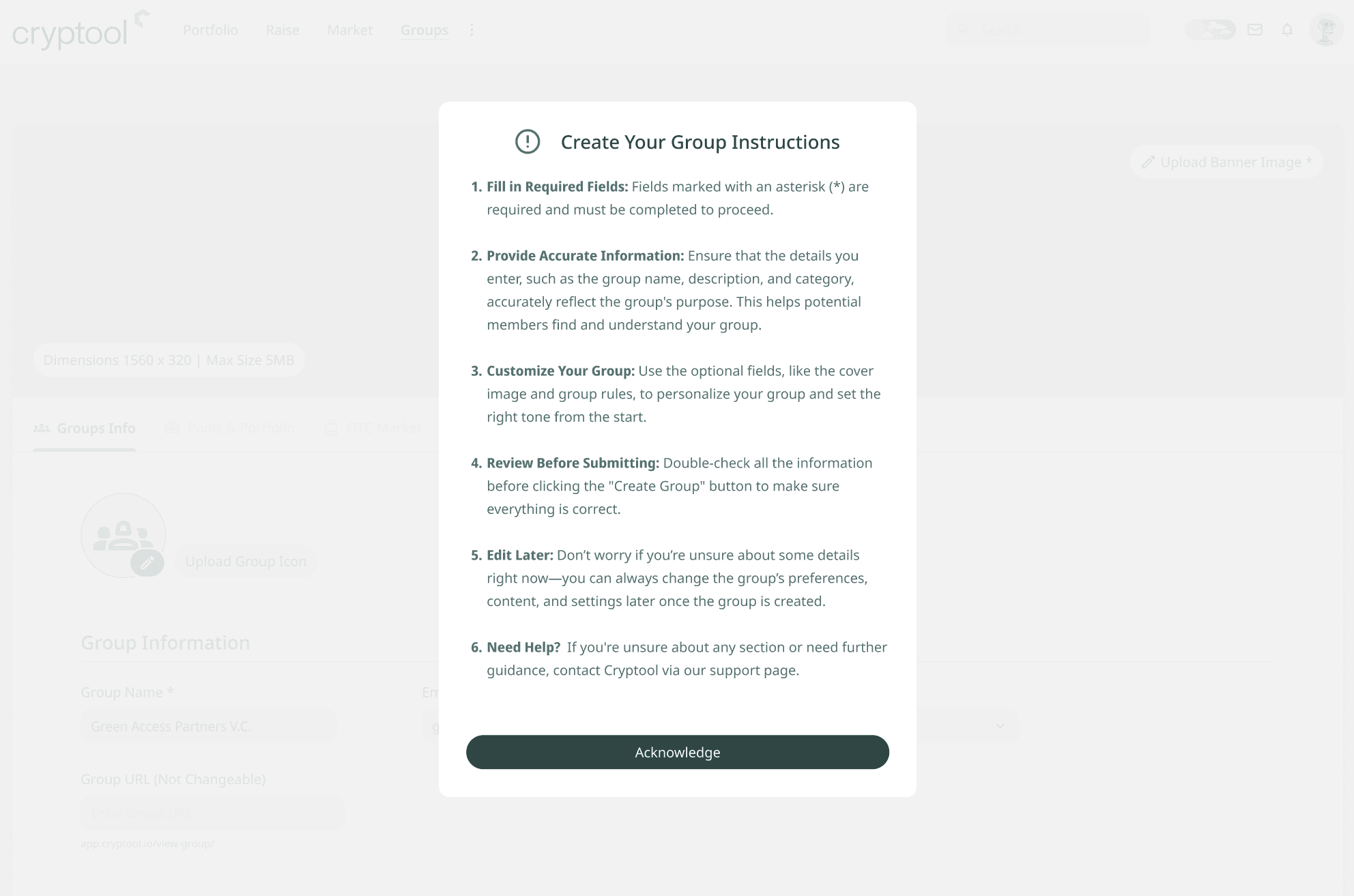
Read the instructions in the pop-up and click Acknowledge to follow them and create your group.
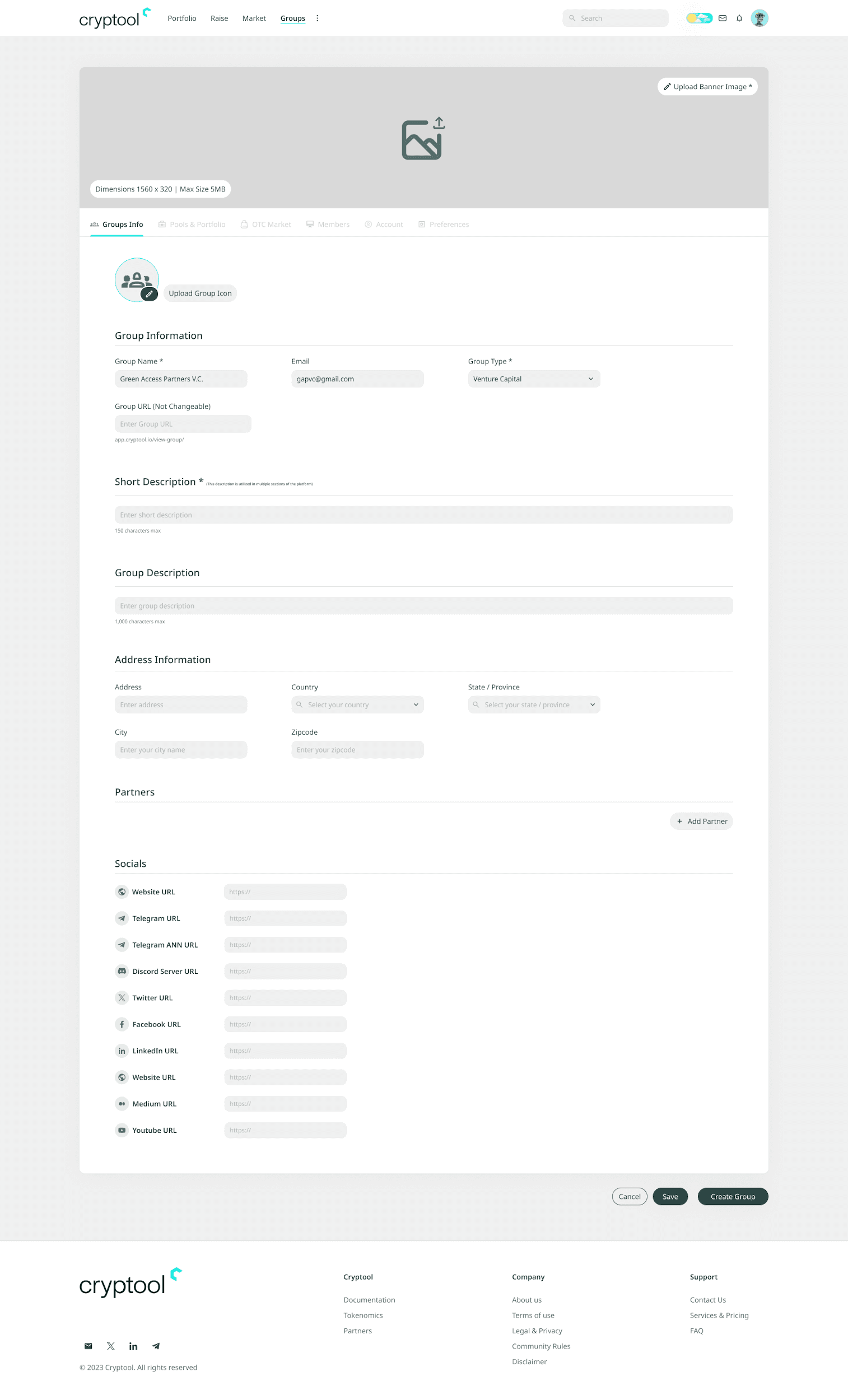
Fill in the required fields. Fields marked with an asterisk (*) are required and must be completed to proceed.
Required Fields
- Change Banner Image *: upload a banner image for your group to represent it visually. This image is used both in tile view (group previews) and as the group banner. For details on how to set the banner properly, see banner instructions.
- Group Name *: the group name.
- Group Type *
- Group URL Suffix *: this is appended to app.cryptool.io/view-group/ and becomes the group's URL on the platform.
- Short Description *: 150 characters max; used in multiple sections of the platform.
Optional Fields
- Email: group email address.
- Group Icon: a smaller image that represents your group across the platform.
- Group Description: 1,000 characters max; allows for a more thorough description of the group.
- Address Information: address, country, state / province, city, zip / postal code.
- Partner: add any relevant partners.
- Socials: add a link to any relevant socials.
Tips before submitting
- Provide accurate information: ensure the group name, description, and category accurately reflect the group's purpose. This helps potential members find and understand your group.
- Customise your group: use the optional fields, like the group icon and group rules, to personalise your group and set the right tone from the start.
- Review before submitting: double-check all the information before clicking Create Group to make sure everything is correct.
- Edit later: don't worry if you're unsure about some details right now; you can always change the group's preferences, content, and settings once it's created.
- Need help?: if you're unsure about any section or need further guidance, contact Cryptool via the Contact Us page.
Click Create Group on the bottom right to save the group information.
'%3e%3cpath%20d='M3.58464%2016.6693C3.1263%2016.6693%202.73394%2016.5061%202.40755%2016.1797C2.08116%2015.8533%201.91797%2015.4609%201.91797%2015.0026V5.0026C1.91797%204.54427%202.08116%204.15191%202.40755%203.82552C2.73394%203.49913%203.1263%203.33594%203.58464%203.33594H16.918C17.3763%203.33594%2017.7687%203.49913%2018.0951%203.82552C18.4214%204.15191%2018.5846%204.54427%2018.5846%205.0026V15.0026C18.5846%2015.4609%2018.4214%2015.8533%2018.0951%2016.1797C17.7687%2016.5061%2017.3763%2016.6693%2016.918%2016.6693H3.58464ZM10.2513%2010.8359L16.918%206.66927V5.0026L10.2513%209.16927L3.58464%205.0026V6.66927L10.2513%2010.8359Z'%20fill='%232F4644'/%3e%3c/g%3e%3c/svg%3e)


'%3e%3cpath%20d='M17.6986%203.85159L15.058%2016.3047C14.8587%2017.1836%2014.3392%2017.4024%2013.6009%2016.9883L9.57749%2014.0235L7.63608%2015.8906C7.42124%2016.1055%207.24155%2016.2852%206.82749%2016.2852L7.11655%2012.1875L14.5736%205.44924C14.8978%205.16018%2014.5033%205.00002%2014.0697%205.28909L4.85093%2011.0938L0.882175%209.85159C0.0188933%209.58205%200.00326826%208.9883%201.06186%208.57424L16.5853%202.59377C17.3041%202.32424%2017.933%202.75393%2017.6986%203.85159Z'%20fill='%232F4644'/%3e%3c/g%3e%3cdefs%3e%3cclipPath%20id='clip0_17601_246206'%3e%3crect%20width='17.5'%20height='20'%20fill='white'%20transform='translate(0.25)'/%3e%3c/clipPath%3e%3c/defs%3e%3c/svg%3e)