
Create Account
Please note that this document will be updated periodically.
Step 1: Start Account Creation
How to start registration
You can start the registration process from any of the three entry points below.
- Option 1: head to cryptool.io and click Launch dApp on the top right, then click Sign Up on the top right.
- Option 2: head to app.cryptool.io and click Sign Up on the top right.
- Option 3: click on a referral link you've been given and proceed with the sign-up flow.

Signing up
Choose between Google or Email registration.
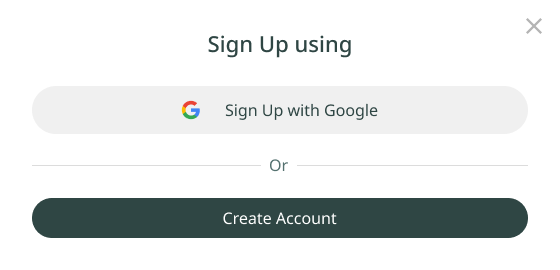
Required core fields
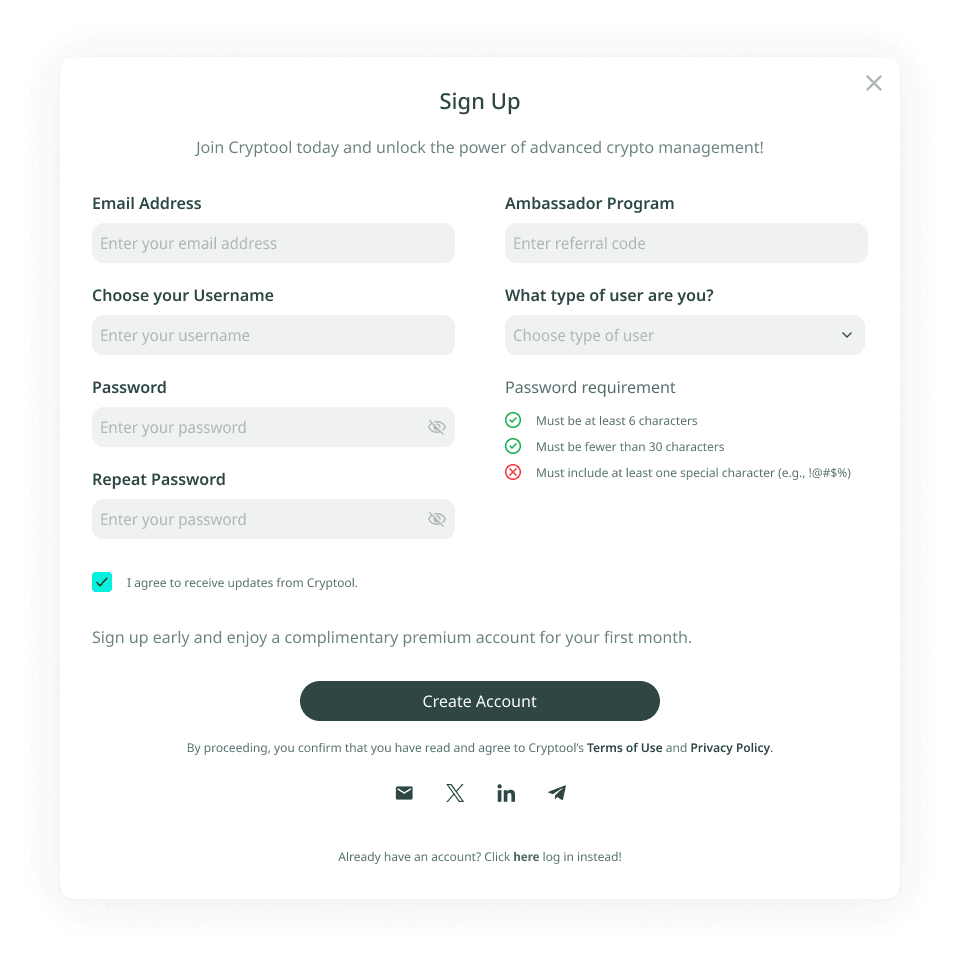
The following fields are required when registering at app.cryptool.io.
- Email Address: primary identifier for the user (Google email is used automatically when signing up with Google).
- Password: must follow our security standards:
- Minimum length of 6 characters.
- Less than 30 characters.
- Must include at least one special character (e.g.
!@#$%).
- Confirm Password: re-enter the same password to verify.
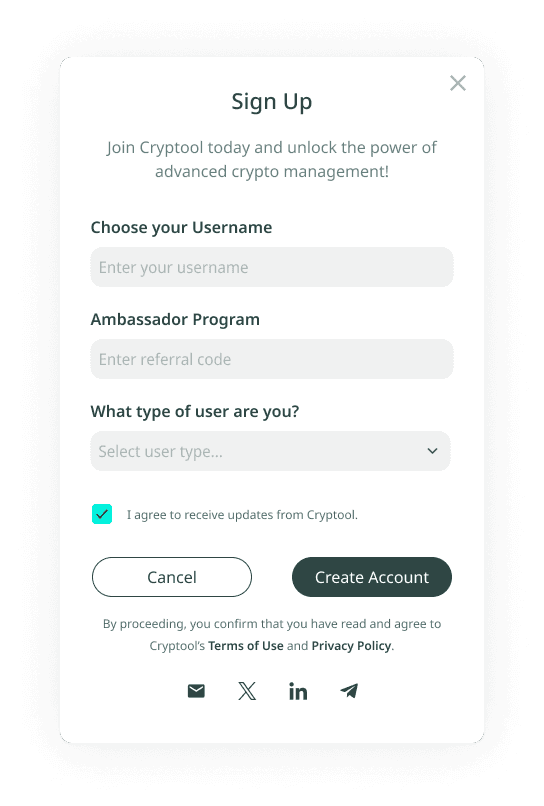
- Username: a unique identifier for your account.
- User Type: select one or more options from the list of user types that best describe you (this can be edited later).
Optional fields
- Ambassador Program: optional referral field. The referral code is filled automatically if you used a referral link.
- Newsletter Subscription: opt in or out of receiving Cryptool updates.
Legal fields
- Terms & Conditions / Privacy Policy: you must tick the checkbox to agree before proceeding.
Step 2: Validation
Form validation
- Email: must be in the correct format (e.g.
example@domain.com) and must be unique. It cannot already be used by another account. - Password: validated for length, complexity, and that the confirmation matches.
- Username: checked in real time and must be unique. It cannot already be used by another account.
Email validation
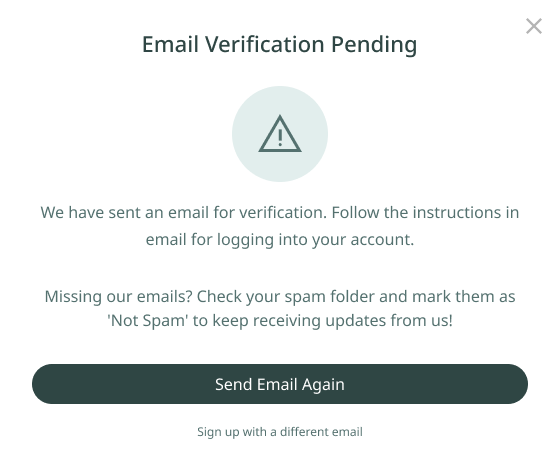
After signing up, a verification email is sent to your inbox.
- If you don't see the email, check your Junk / Spam folder.
- If it still hasn't arrived, click Resend Verification Email on the login page.
Step 3: User Security
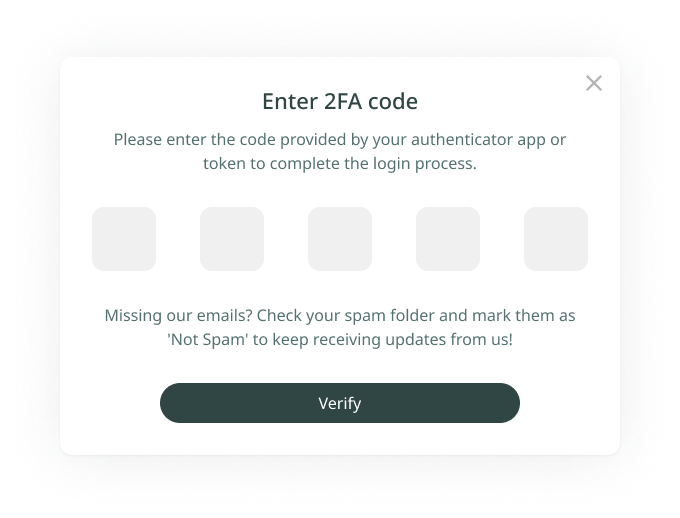
Two-Factor Authentication (2FA)
After registration, you can enhance your account security from the User Profile in the top right of the platform.
- Choose between Email or Google Authenticator as the 2FA method.
- Once enabled, an additional code sent to your phone or email is required at every login.
'%3e%3cpath%20d='M3.58464%2016.6693C3.1263%2016.6693%202.73394%2016.5061%202.40755%2016.1797C2.08116%2015.8533%201.91797%2015.4609%201.91797%2015.0026V5.0026C1.91797%204.54427%202.08116%204.15191%202.40755%203.82552C2.73394%203.49913%203.1263%203.33594%203.58464%203.33594H16.918C17.3763%203.33594%2017.7687%203.49913%2018.0951%203.82552C18.4214%204.15191%2018.5846%204.54427%2018.5846%205.0026V15.0026C18.5846%2015.4609%2018.4214%2015.8533%2018.0951%2016.1797C17.7687%2016.5061%2017.3763%2016.6693%2016.918%2016.6693H3.58464ZM10.2513%2010.8359L16.918%206.66927V5.0026L10.2513%209.16927L3.58464%205.0026V6.66927L10.2513%2010.8359Z'%20fill='%232F4644'/%3e%3c/g%3e%3c/svg%3e)


'%3e%3cpath%20d='M17.6986%203.85159L15.058%2016.3047C14.8587%2017.1836%2014.3392%2017.4024%2013.6009%2016.9883L9.57749%2014.0235L7.63608%2015.8906C7.42124%2016.1055%207.24155%2016.2852%206.82749%2016.2852L7.11655%2012.1875L14.5736%205.44924C14.8978%205.16018%2014.5033%205.00002%2014.0697%205.28909L4.85093%2011.0938L0.882175%209.85159C0.0188933%209.58205%200.00326826%208.9883%201.06186%208.57424L16.5853%202.59377C17.3041%202.32424%2017.933%202.75393%2017.6986%203.85159Z'%20fill='%232F4644'/%3e%3c/g%3e%3cdefs%3e%3cclipPath%20id='clip0_17601_246206'%3e%3crect%20width='17.5'%20height='20'%20fill='white'%20transform='translate(0.25)'/%3e%3c/clipPath%3e%3c/defs%3e%3c/svg%3e)