
User Subscription
Please note that this document will be updated periodically.
Step 1: Edit User Profile Subscription
How to access User Profile Subscription
Click on the person icon on the top right, select View Profile from the dropdown, and click on the Subscription tab. Your current subscription plan will be shown under Platform Tier.
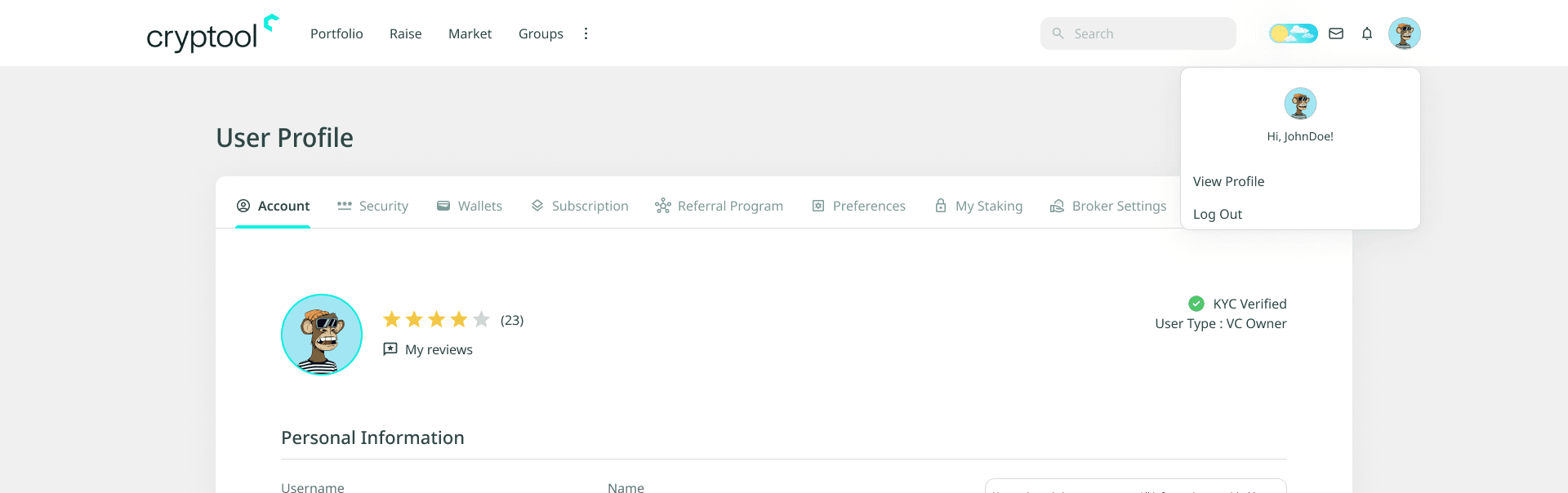
How to edit User Profile Subscription
You can change your subscription in two ways, either directly via the Change Plan button, or by browsing all plans via View Subscription Plans.
Option 1, Via the Change Plan button
Click on Change Plan, then click Change next to the current plan.
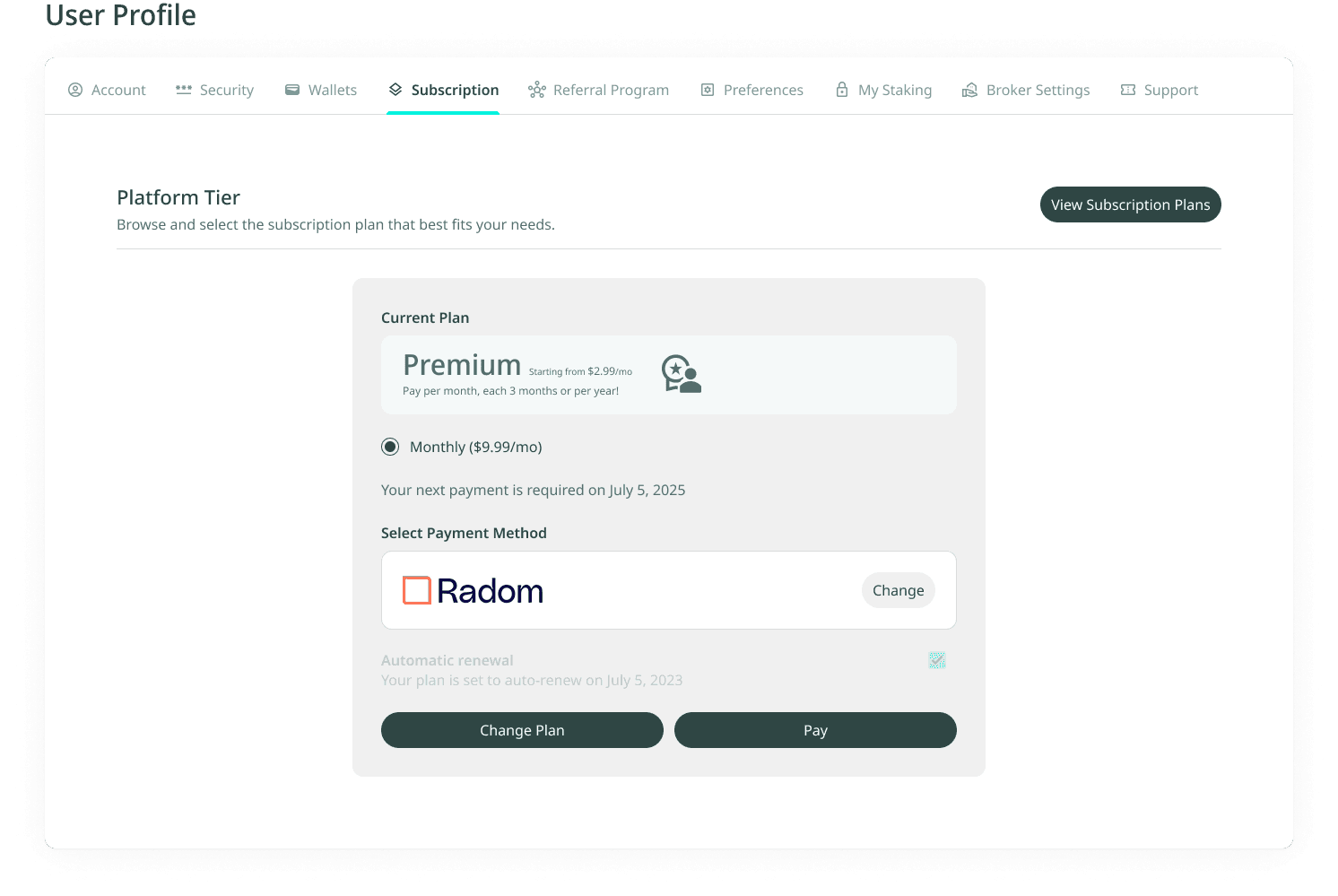
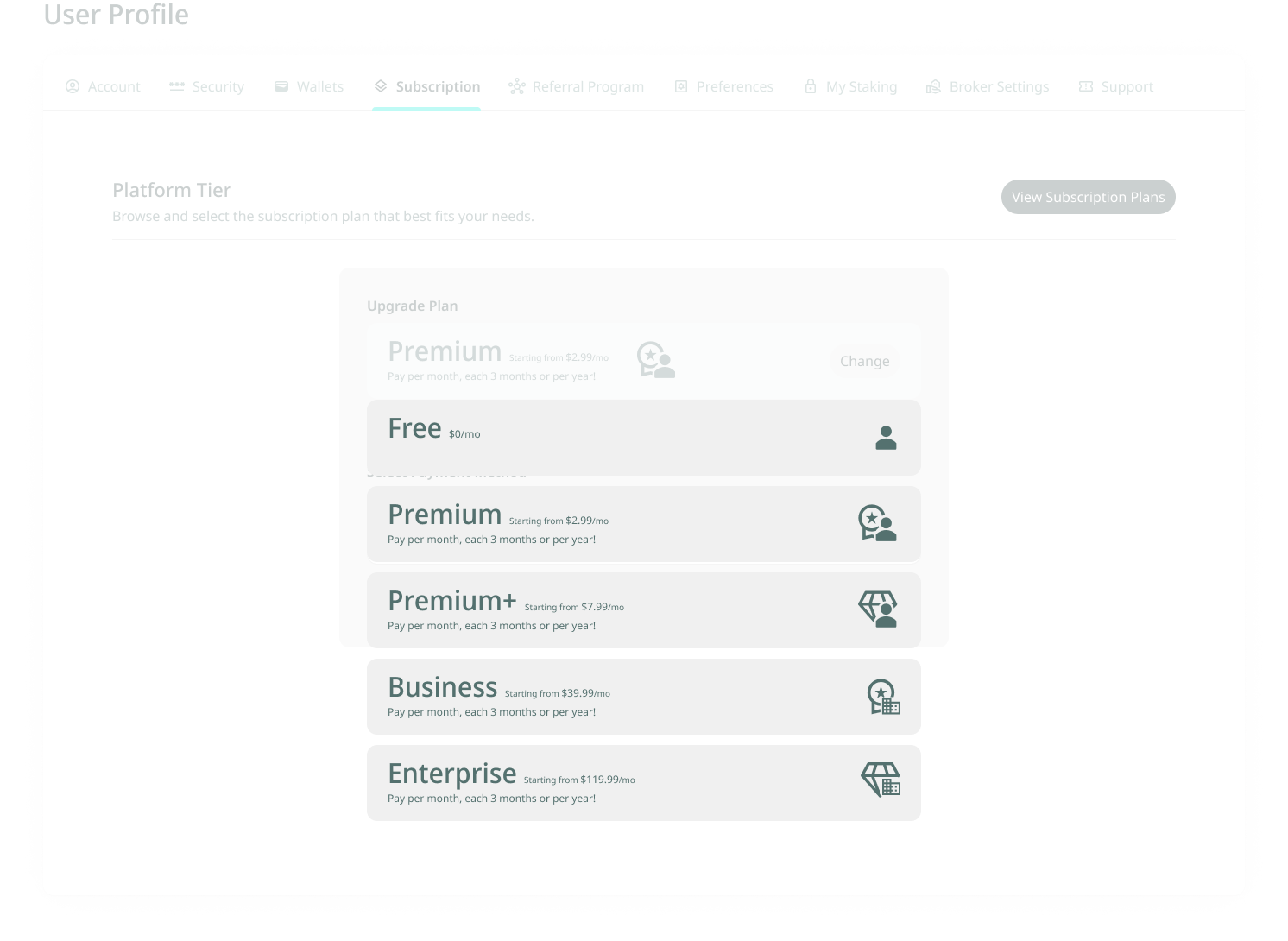
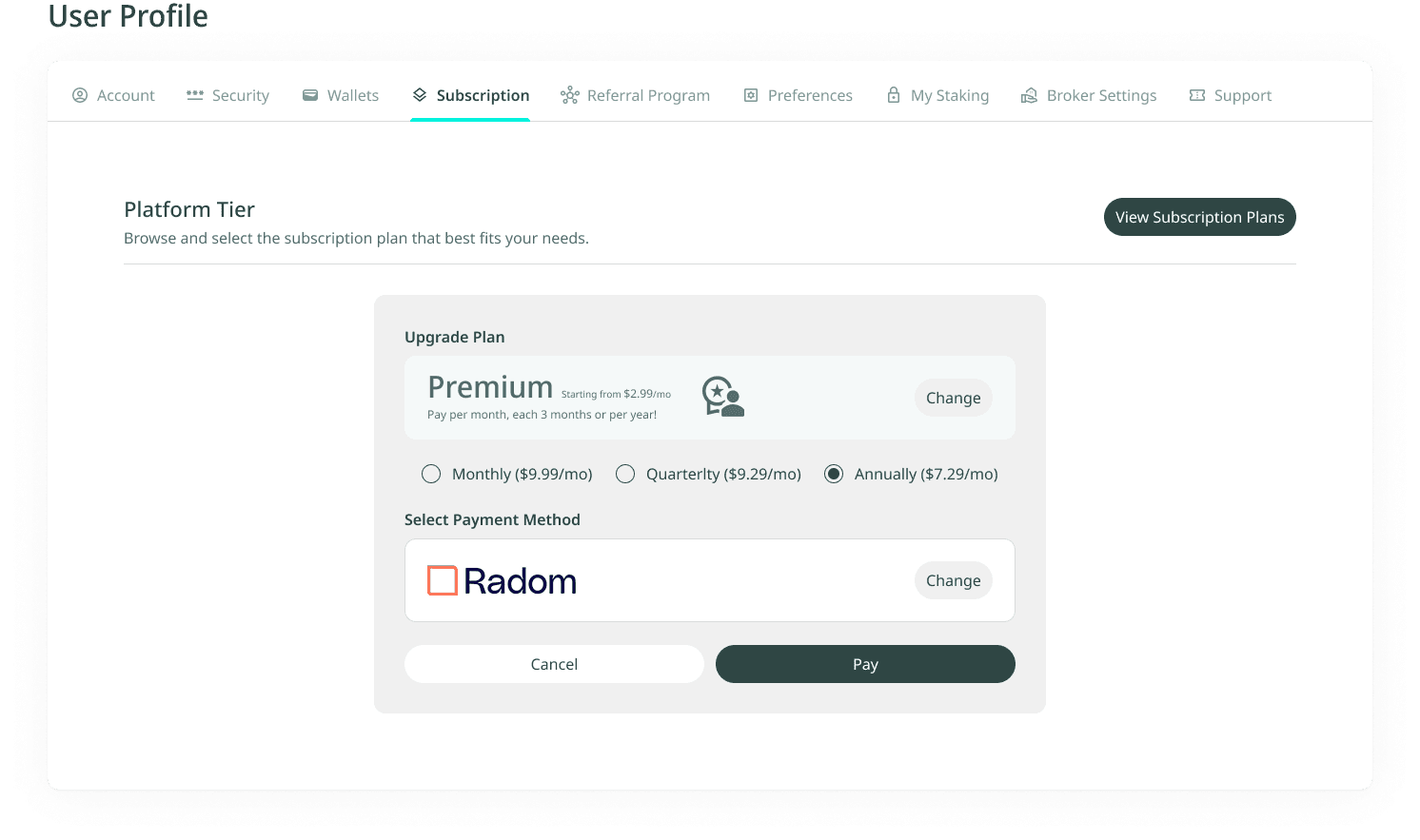
Click on the plan you want to change to, then select one of the available billing intervals:
- Monthly
- Quarterly
- Annual
Select the desired payment method, click Pay, and follow the instructions on the third-party payment site to complete the payment.
Option 2, Via the View Subscription Plans button
Click on the Subscription tab under User Profile. Locate Platform Tier, where your current plan is displayed, and click View Subscription Plans to the right of it.
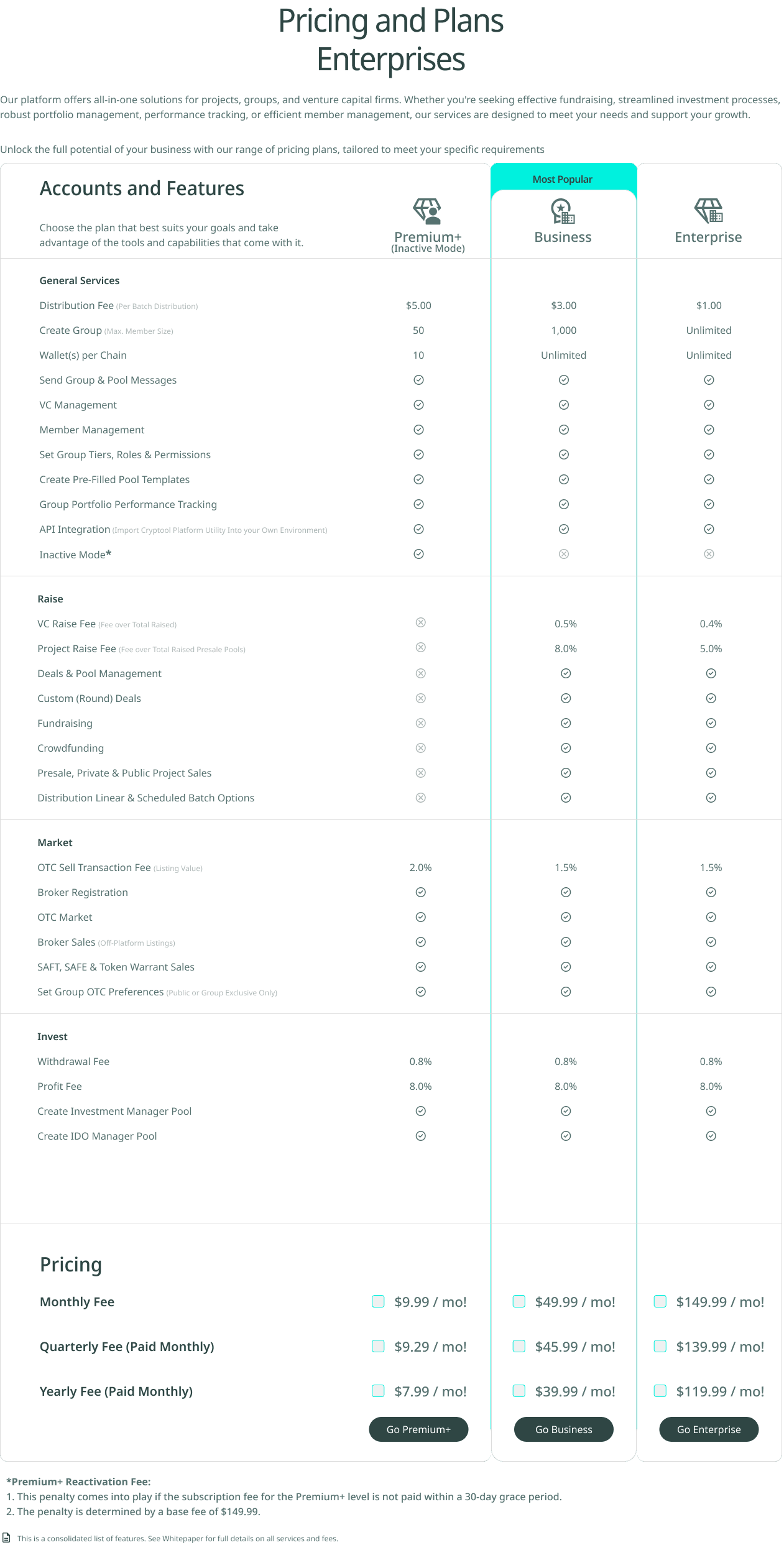
In the top right corner, below User Profile, choose either Users or Enterprises to view subscription details tailored to individuals or businesses.
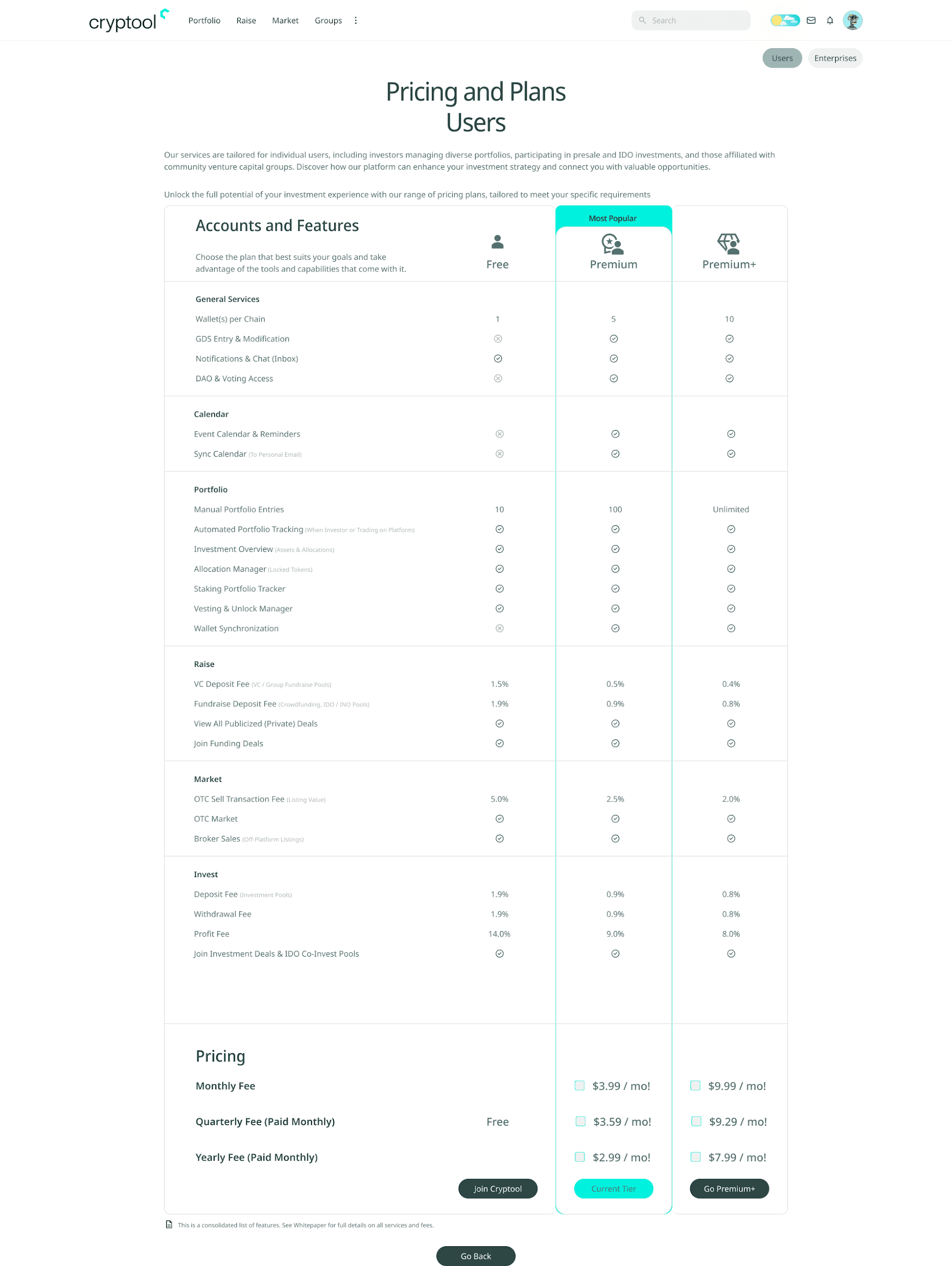
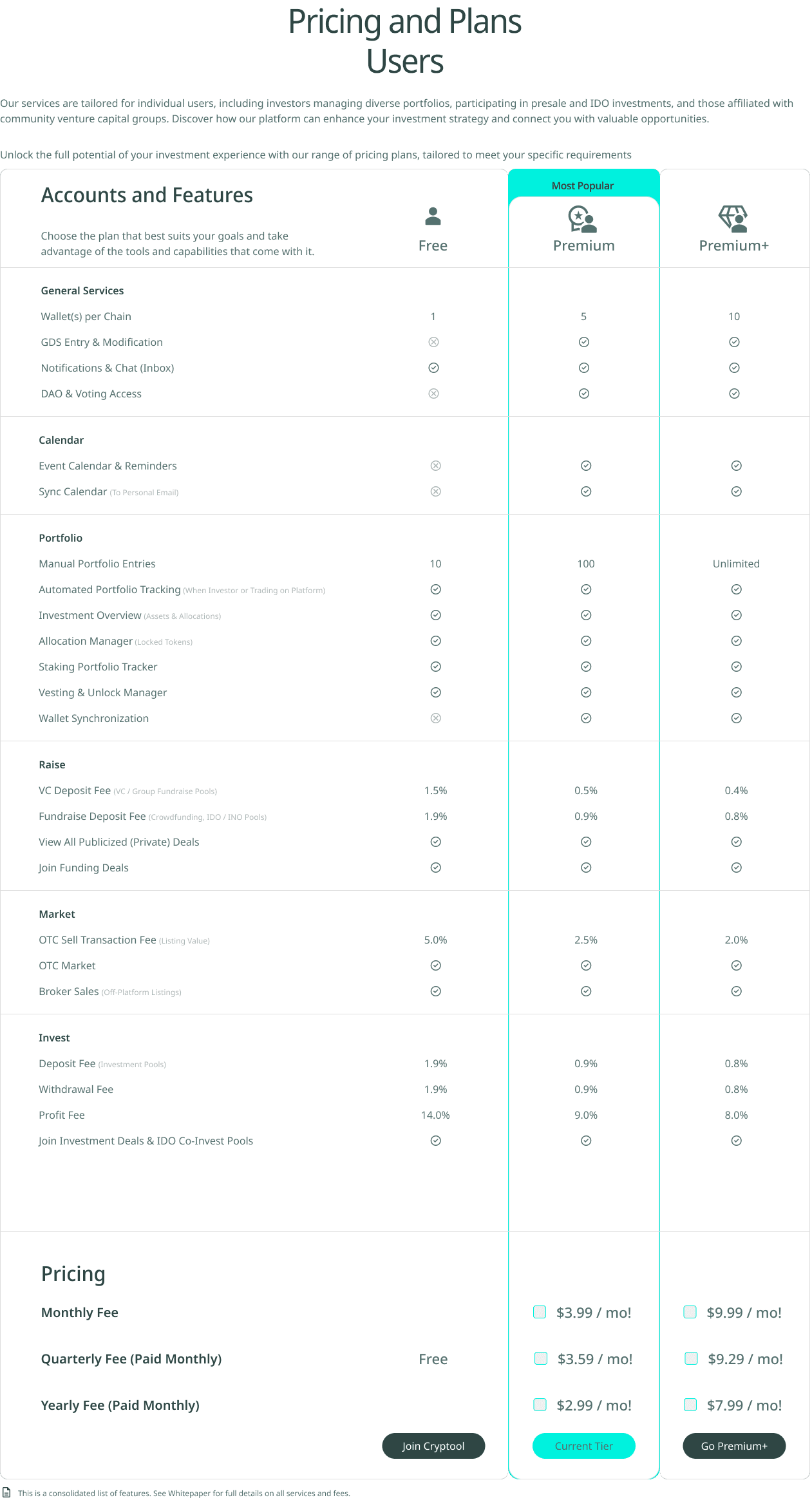
The page will display your current active plan alongside alternative plans with their features and pricing.
Available plans for Users
- Free
- Premium
- Premium+
Available plans for Enterprises
- Premium+ (Inactive Mode)
- Business
- Enterprise
Billing intervals
- Monthly
- Quarterly
- Annually
To switch plans, click the Go Premium, Go Business, or Go Enterprise button at the bottom of the desired subscription. To exit without changing, click Go Back at the bottom of the page.
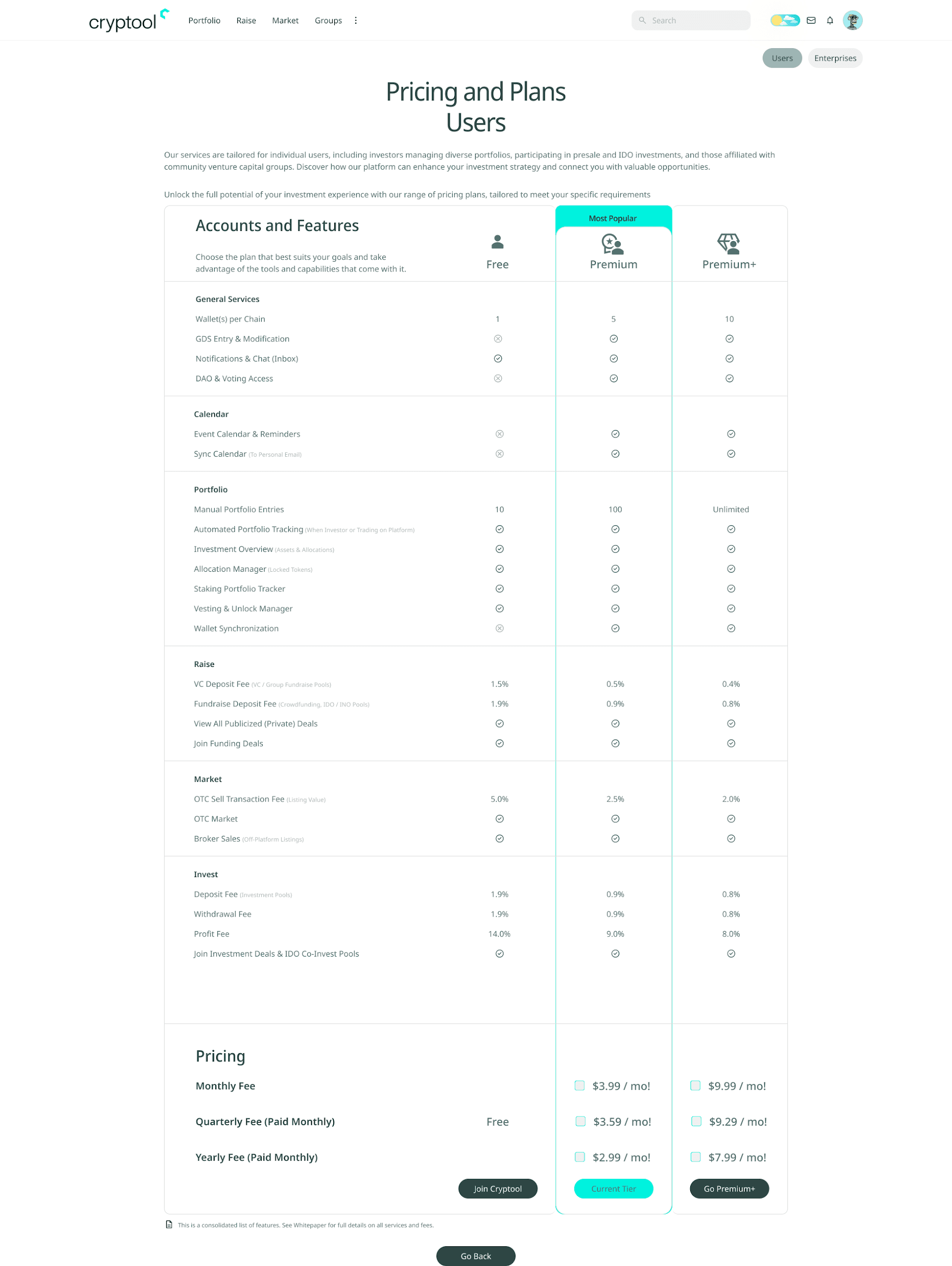
Confirm and select billing details
After selecting a new plan, you will return to the Subscription tab, where your new choice will be pre-selected.
Complete payment
Select your payment method, click Pay, and follow the instructions on the third-party payment site to finalize the transaction.
Step 2: Payment History
How to view and download Payment History
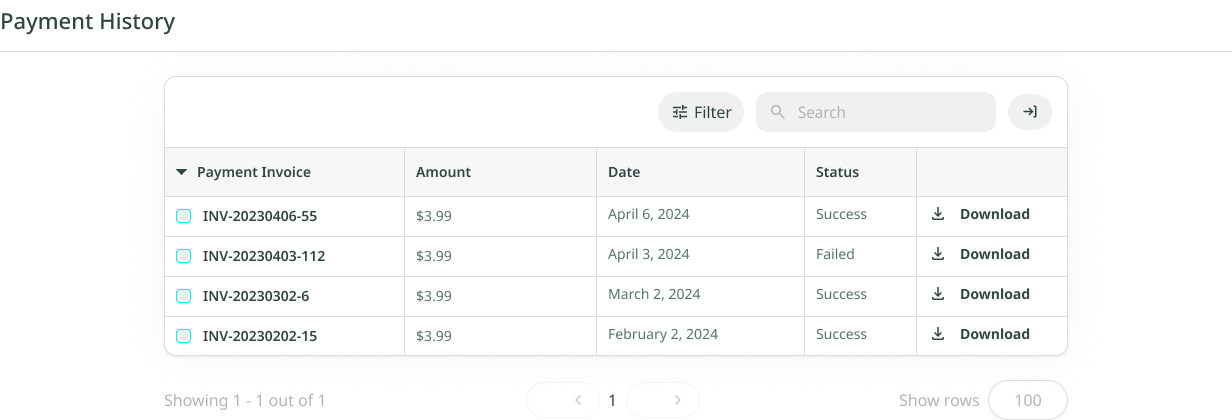
The Payment History is listed in a table under the Platform Tier section of the Subscription tab and shows the following columns:
- Payment Invoice
- Amount
- Date
- Status
To download an invoice, tick the checkbox to the left of the relevant invoice and click Download above the table or to the far right of the invoice. Filtering and searching for invoices is also available above the table.
'%3e%3cpath%20d='M3.58464%2016.6693C3.1263%2016.6693%202.73394%2016.5061%202.40755%2016.1797C2.08116%2015.8533%201.91797%2015.4609%201.91797%2015.0026V5.0026C1.91797%204.54427%202.08116%204.15191%202.40755%203.82552C2.73394%203.49913%203.1263%203.33594%203.58464%203.33594H16.918C17.3763%203.33594%2017.7687%203.49913%2018.0951%203.82552C18.4214%204.15191%2018.5846%204.54427%2018.5846%205.0026V15.0026C18.5846%2015.4609%2018.4214%2015.8533%2018.0951%2016.1797C17.7687%2016.5061%2017.3763%2016.6693%2016.918%2016.6693H3.58464ZM10.2513%2010.8359L16.918%206.66927V5.0026L10.2513%209.16927L3.58464%205.0026V6.66927L10.2513%2010.8359Z'%20fill='%232F4644'/%3e%3c/g%3e%3c/svg%3e)


'%3e%3cpath%20d='M17.6986%203.85159L15.058%2016.3047C14.8587%2017.1836%2014.3392%2017.4024%2013.6009%2016.9883L9.57749%2014.0235L7.63608%2015.8906C7.42124%2016.1055%207.24155%2016.2852%206.82749%2016.2852L7.11655%2012.1875L14.5736%205.44924C14.8978%205.16018%2014.5033%205.00002%2014.0697%205.28909L4.85093%2011.0938L0.882175%209.85159C0.0188933%209.58205%200.00326826%208.9883%201.06186%208.57424L16.5853%202.59377C17.3041%202.32424%2017.933%202.75393%2017.6986%203.85159Z'%20fill='%232F4644'/%3e%3c/g%3e%3cdefs%3e%3cclipPath%20id='clip0_17601_246206'%3e%3crect%20width='17.5'%20height='20'%20fill='white'%20transform='translate(0.25)'/%3e%3c/clipPath%3e%3c/defs%3e%3c/svg%3e)