
User Preferences
Please note that this document will be updated periodically.
Step 1: Edit User Profile Preferences
How to access User Profile Preferences
Click on the person icon on the top right, select View Profile from the dropdown, and click on the Preferences tab.
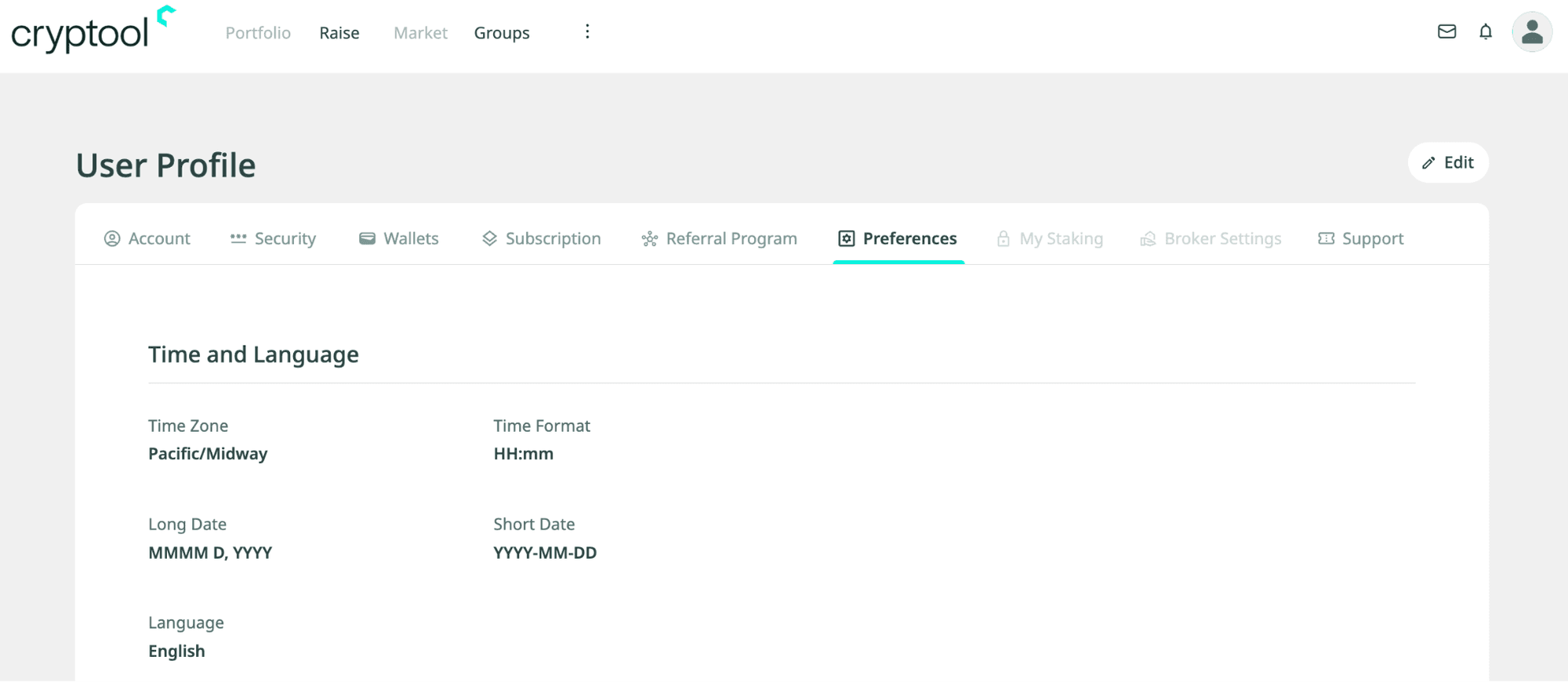
How to edit User Profile Preferences
Click on the Preferences tab under User Profile, then click on Edit in the top right above the tabs.
Step 2: Relevant Preferences
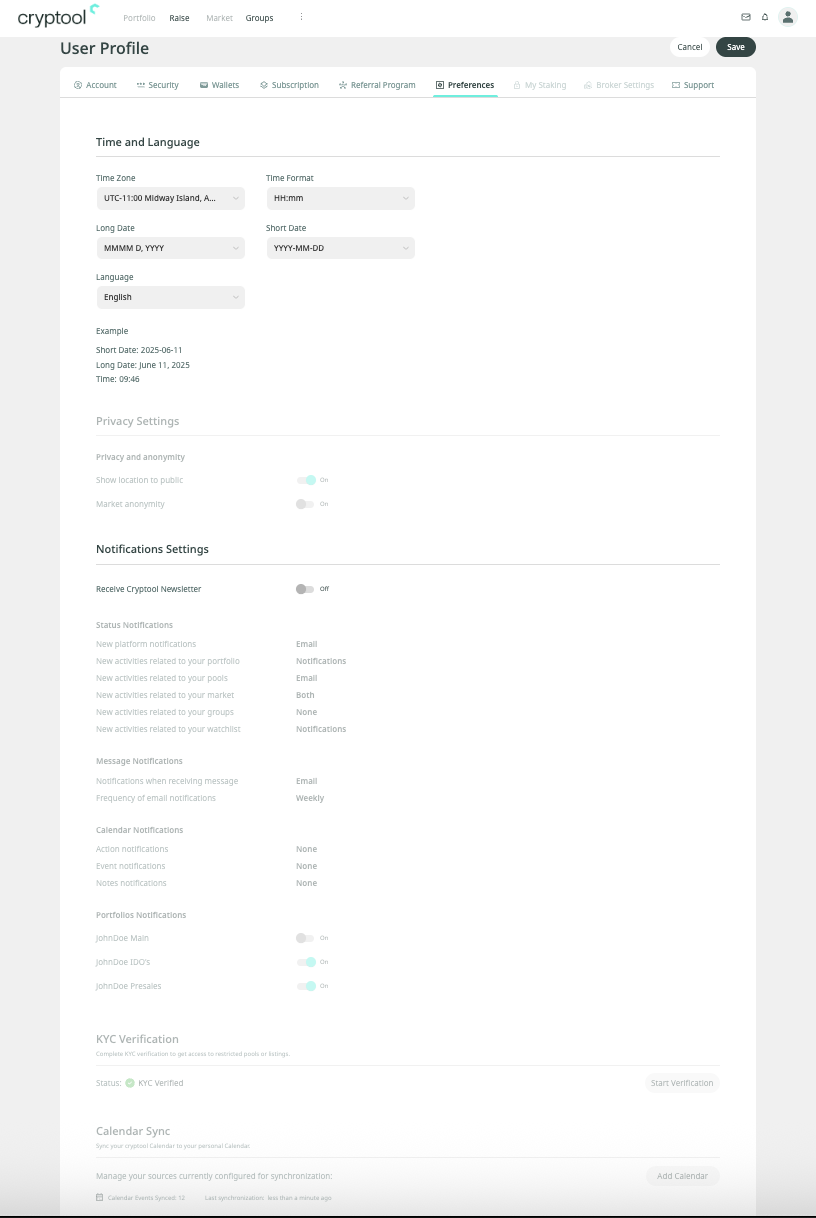
Time and Language
- Time Zone: UTC +/-
- Time Format: HH:mm
- Long Date: MMMM D, YYYY
- Short Date: YYYY-MM-DD
- Language: English
Privacy and Anonymity
- Show location to public: On / Off
- Market anonymity: On / Off
Notification Settings
- Receive Cryptool Newsletter: On / Off
- Status Notifications:
- New platform notifications: Email
- New activities related to your portfolio: Notifications
- New activities related to your pools: Email
- New activities related to your market: Both
- New activities related to your groups: None
- New activities related to your watchlist: Notifications
Message Notifications
- Notifications when receiving message: Email
- Frequency of email notifications: Weekly
Calendar Notifications
- Action notifications: None
- Event notifications: None
- Notes notifications: None
Portfolios Notifications
- JohnDoe Main: On / Off
- JohnDoe IDO's: On / Off
- JohnDoe Presales: On / Off
KYC Verification
- Status: Verified / Not verified
- Start Verification
Calendar Sync
- Add Calendar
- Manage Calendars, configure per-calendar notifications (Email / Notification / Both / None).
Click Save on the top right above the tabs to save the edited user profile preferences, or click Cancel to leave without saving.
'%3e%3cpath%20d='M3.58464%2016.6693C3.1263%2016.6693%202.73394%2016.5061%202.40755%2016.1797C2.08116%2015.8533%201.91797%2015.4609%201.91797%2015.0026V5.0026C1.91797%204.54427%202.08116%204.15191%202.40755%203.82552C2.73394%203.49913%203.1263%203.33594%203.58464%203.33594H16.918C17.3763%203.33594%2017.7687%203.49913%2018.0951%203.82552C18.4214%204.15191%2018.5846%204.54427%2018.5846%205.0026V15.0026C18.5846%2015.4609%2018.4214%2015.8533%2018.0951%2016.1797C17.7687%2016.5061%2017.3763%2016.6693%2016.918%2016.6693H3.58464ZM10.2513%2010.8359L16.918%206.66927V5.0026L10.2513%209.16927L3.58464%205.0026V6.66927L10.2513%2010.8359Z'%20fill='%232F4644'/%3e%3c/g%3e%3c/svg%3e)


'%3e%3cpath%20d='M17.6986%203.85159L15.058%2016.3047C14.8587%2017.1836%2014.3392%2017.4024%2013.6009%2016.9883L9.57749%2014.0235L7.63608%2015.8906C7.42124%2016.1055%207.24155%2016.2852%206.82749%2016.2852L7.11655%2012.1875L14.5736%205.44924C14.8978%205.16018%2014.5033%205.00002%2014.0697%205.28909L4.85093%2011.0938L0.882175%209.85159C0.0188933%209.58205%200.00326826%208.9883%201.06186%208.57424L16.5853%202.59377C17.3041%202.32424%2017.933%202.75393%2017.6986%203.85159Z'%20fill='%232F4644'/%3e%3c/g%3e%3cdefs%3e%3cclipPath%20id='clip0_17601_246206'%3e%3crect%20width='17.5'%20height='20'%20fill='white'%20transform='translate(0.25)'/%3e%3c/clipPath%3e%3c/defs%3e%3c/svg%3e)