
Join Pool
Please note that this document will be updated periodically.
This feature is only available if you have a role with the relevant rights according to the group settings.
How to access a pool
With a pool link
To join a pool, open the pool link directly, for example, https://app.cryptool.io/raise-detail/fecf34f8-9a41-4014-80e8-0142fd2244be.
Without a pool link
Click on Raise in the main menu. This will show all the available pools you can join. Locate the pool you want to join and click View Pool: this takes you directly to the pool page.
The pool page
The pool page has four sections:
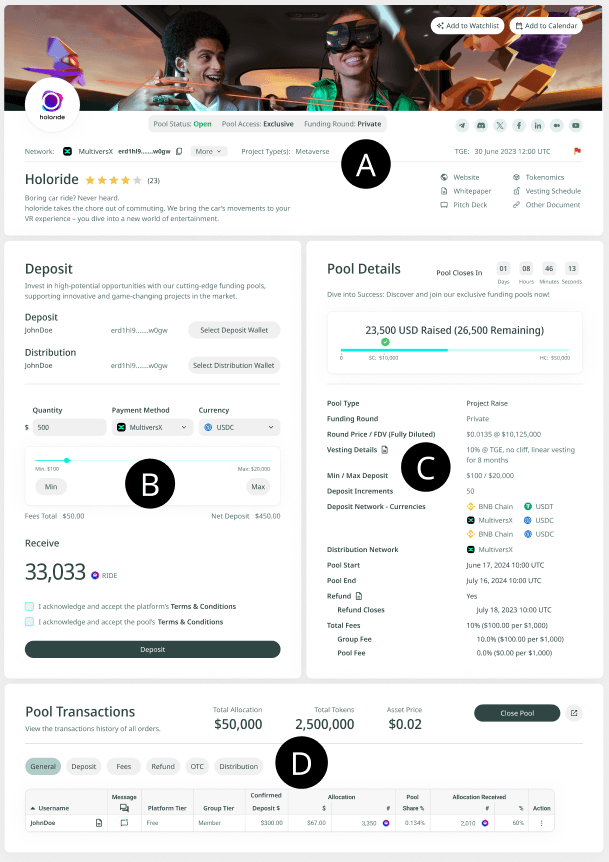
- Section A, Project details. The most important details about the project being funded.
- Section B, Deposit. Where users submit their deposits.
- Section C, Pool details. All the details about the pool itself.
- Section D, Your deposits. Becomes available after you make a deposit; lets you track every deposit you've made.
Joining a pool with a pool link
Open the pool
Open the pool with the pool link. To join, you first need to connect your deposit and distribution wallets.
When you open a pool, a new tab will open asking you to connect a wallet. In that tab, upload the keystore file and enter your password to connect.
Connect your wallets
With the pool page open, scroll down to the deposit section. Click the buttons to select your wallet, then choose your wallet from the dropdown and continue.
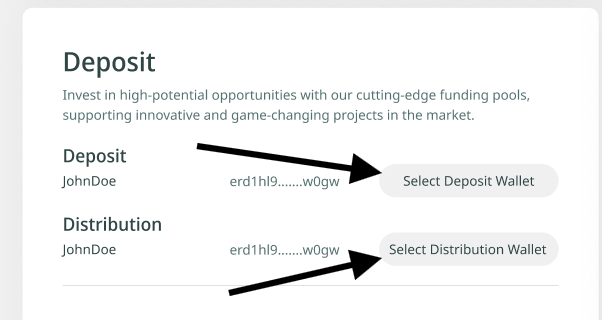
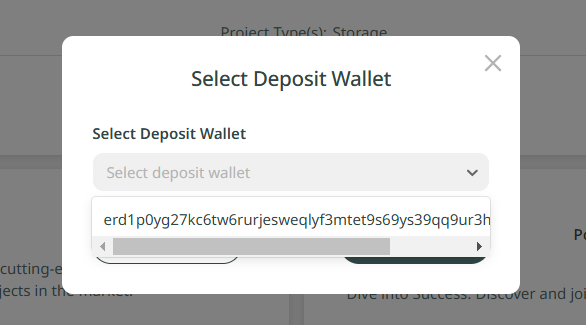
Set your deposit and submit
Scroll further down. Use the slider to set the quantity. Select MultiversX as the payment method and USDC or USDT as the deposit currency. Agree to the platform's and pool's terms, then submit your deposit.
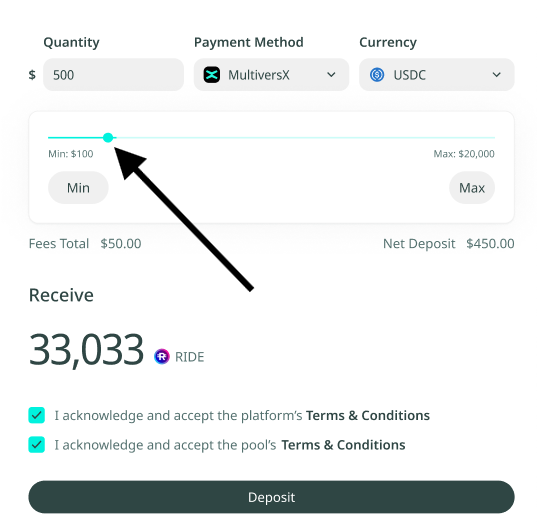
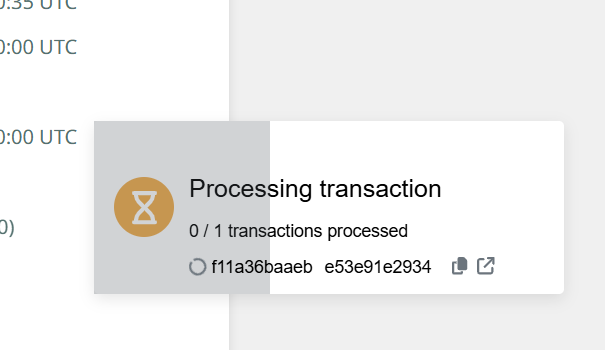
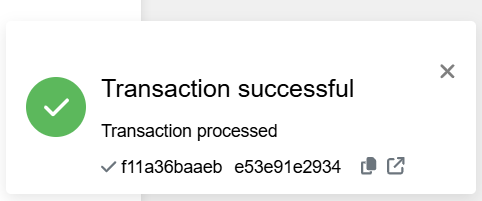
Once you click Deposit, a new tab will open asking you to connect and sign with your wallet. After signing, wait for the transaction to process. Once it completes, your deposit is submitted.
Finding a pool from the Groups page
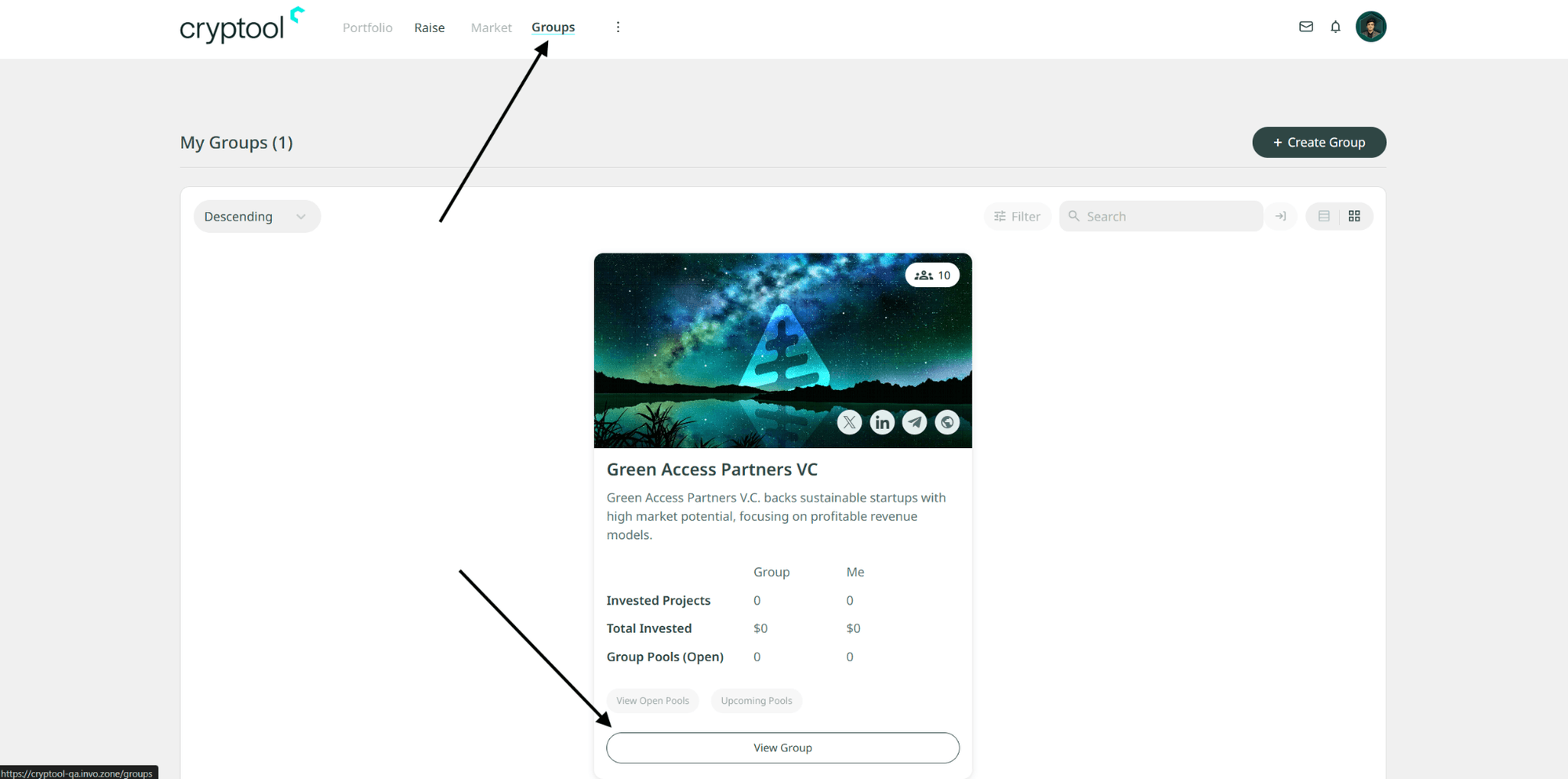
- Click on Groups in the header and click View Group to access the group.
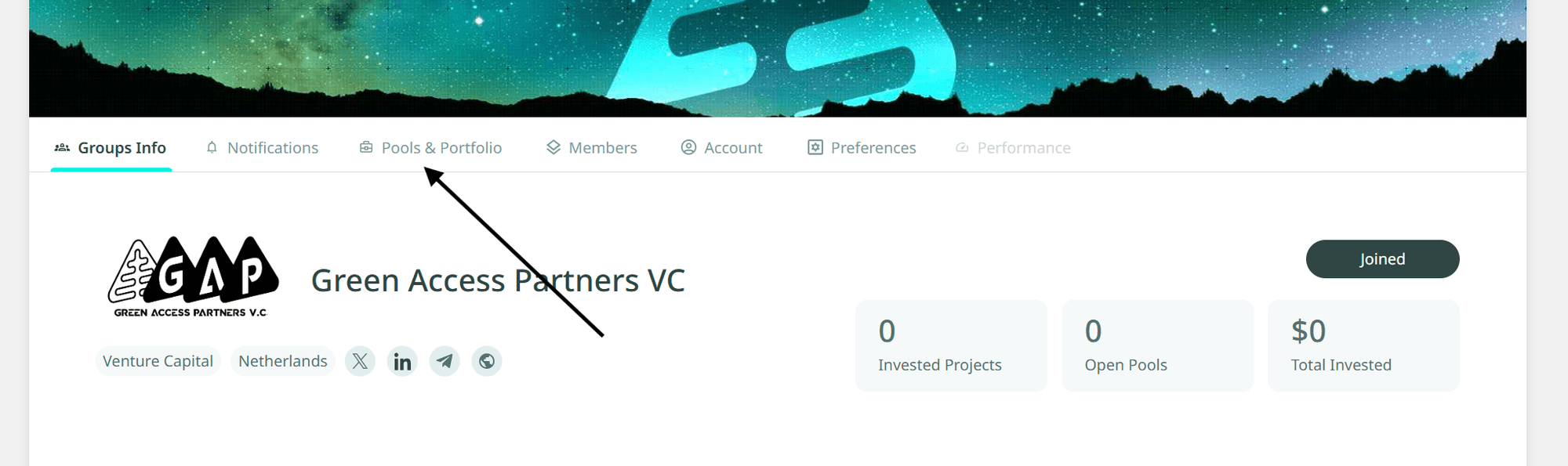
- Go to Pools & Portfolio.
- You'll see all the pools the group has published. Click View Pool for the pool you want to join.
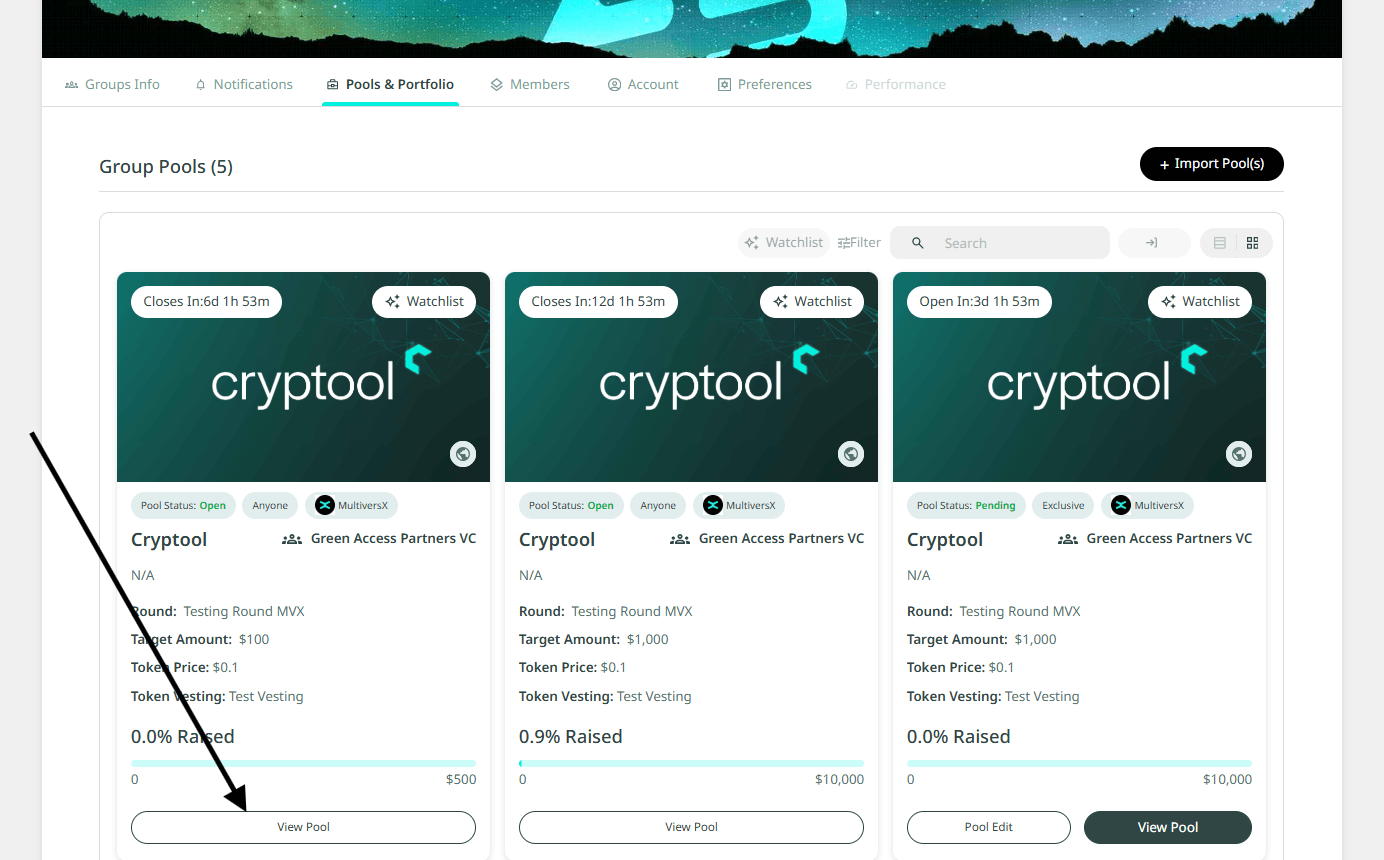
Finding a pool from the Raise page
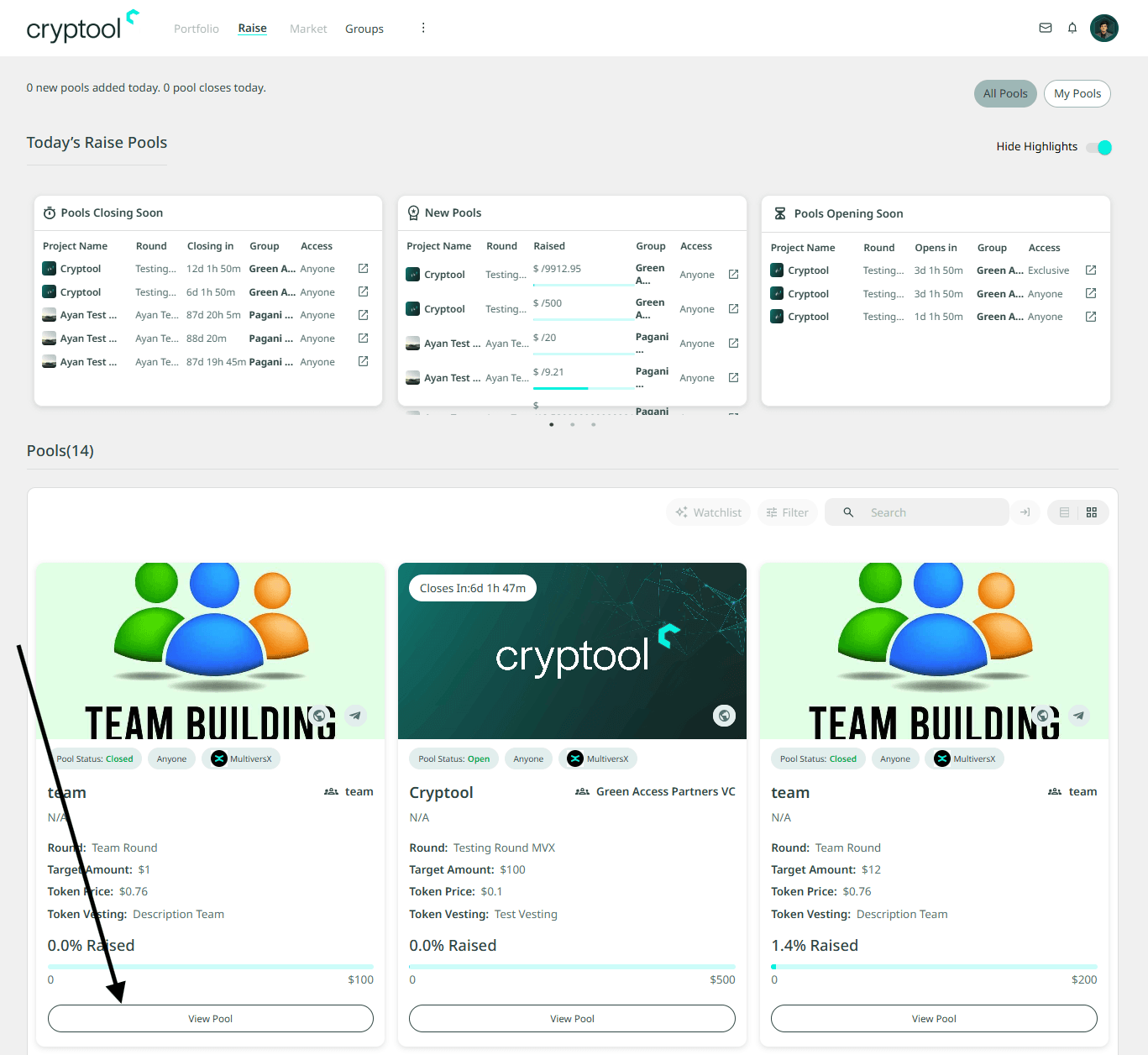
Click on Raise in the header to access the Raise page.

The Raise page has multiple sections. The highlights show the oldest, newest, and upcoming pools. Below that, you'll see all the pools from different groups based on pool access. To join any pool, click View Pool.
'%3e%3cpath%20d='M3.58464%2016.6693C3.1263%2016.6693%202.73394%2016.5061%202.40755%2016.1797C2.08116%2015.8533%201.91797%2015.4609%201.91797%2015.0026V5.0026C1.91797%204.54427%202.08116%204.15191%202.40755%203.82552C2.73394%203.49913%203.1263%203.33594%203.58464%203.33594H16.918C17.3763%203.33594%2017.7687%203.49913%2018.0951%203.82552C18.4214%204.15191%2018.5846%204.54427%2018.5846%205.0026V15.0026C18.5846%2015.4609%2018.4214%2015.8533%2018.0951%2016.1797C17.7687%2016.5061%2017.3763%2016.6693%2016.918%2016.6693H3.58464ZM10.2513%2010.8359L16.918%206.66927V5.0026L10.2513%209.16927L3.58464%205.0026V6.66927L10.2513%2010.8359Z'%20fill='%232F4644'/%3e%3c/g%3e%3c/svg%3e)


'%3e%3cpath%20d='M17.6986%203.85159L15.058%2016.3047C14.8587%2017.1836%2014.3392%2017.4024%2013.6009%2016.9883L9.57749%2014.0235L7.63608%2015.8906C7.42124%2016.1055%207.24155%2016.2852%206.82749%2016.2852L7.11655%2012.1875L14.5736%205.44924C14.8978%205.16018%2014.5033%205.00002%2014.0697%205.28909L4.85093%2011.0938L0.882175%209.85159C0.0188933%209.58205%200.00326826%208.9883%201.06186%208.57424L16.5853%202.59377C17.3041%202.32424%2017.933%202.75393%2017.6986%203.85159Z'%20fill='%232F4644'/%3e%3c/g%3e%3cdefs%3e%3cclipPath%20id='clip0_17601_246206'%3e%3crect%20width='17.5'%20height='20'%20fill='white'%20transform='translate(0.25)'/%3e%3c/clipPath%3e%3c/defs%3e%3c/svg%3e)