
Group Pools & Portfolio
Please note that this document will be updated periodically.
This feature is only available if you have a role with the relevant rights according to the group settings.
Edit Group Pools & Portfolio
How to access Group Pools & Portfolio
Click on Groups in the main menu, click on the group you want to edit pools & portfolio for, and click on the Pools & Portfolio tab.

How to import pools
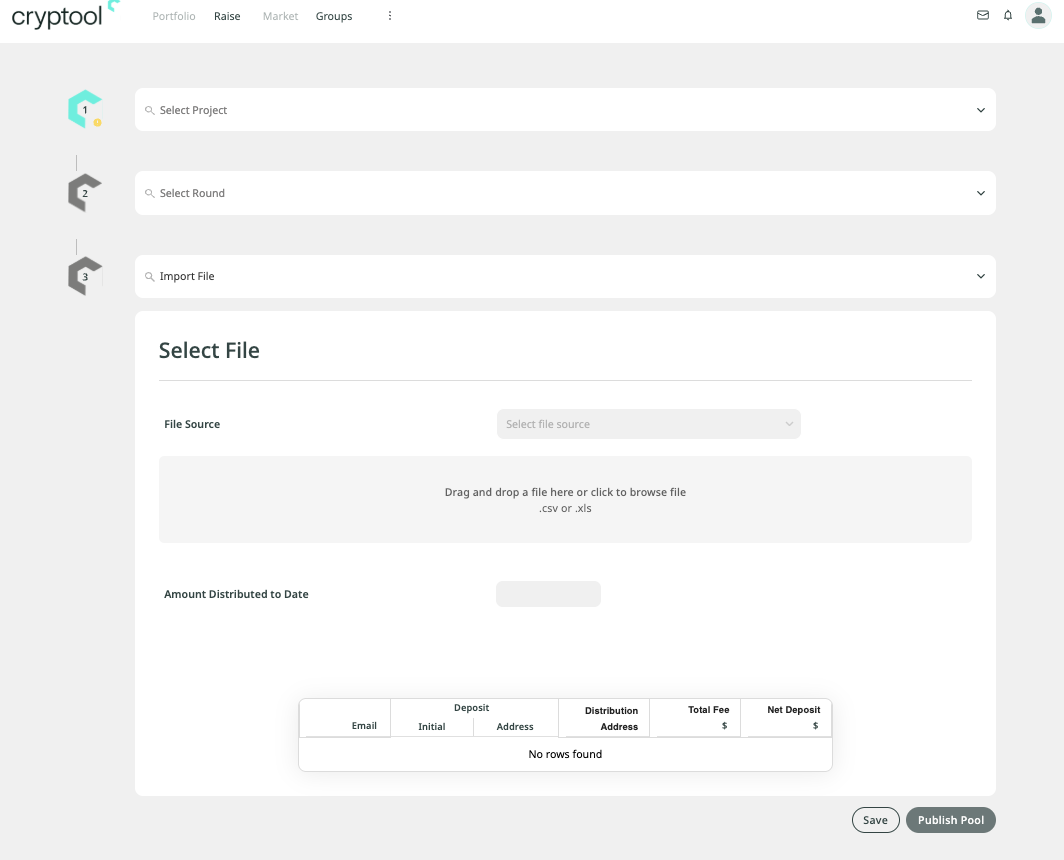
- Click + Import Pool(s) on the top right of the Group Pools table.
- Select the project you want to create a new pool for from the dropdown.
- Select the round from the dropdown.
- Select the import file source from the dropdown to indicate what type of file you are importing (Presail, Poolo, or Spreadsheet Template).
- Drag and drop a file into the given area, or click to locate the file on your computer (
.csvor.xls).
Import Table Columns
The table underneath will show the content of the import file with the following info:
- Deposit Initial
- Deposit Address
- Distribution Address
- Total Fee $
- Net Deposit $
Click Save on the bottom right to save the import pool information, or click Publish Pool to publish the imported pool(s). The resulting published pools will show in the Group Pools table, and the resulting draft (unpublished) pools will show in the Group Pool Drafts table back on the main Pools & Portfolio page.
How to create a Raise Pool
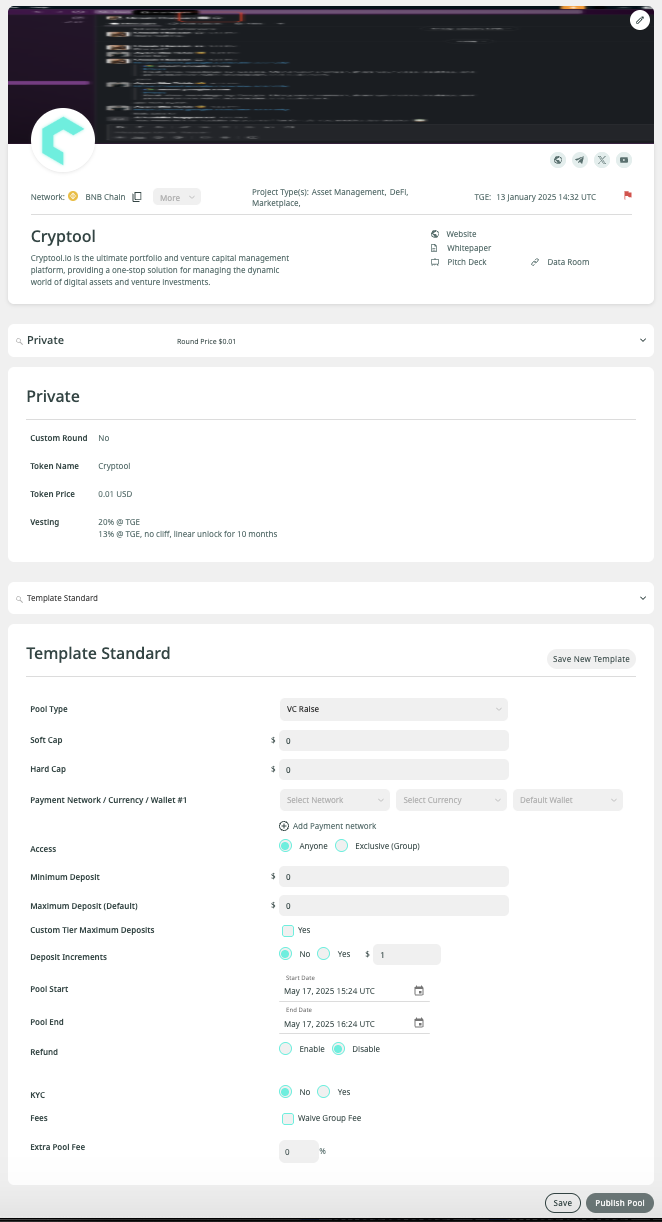
- Click + Create Raise Pool on the top right of the Group Pool Drafts table.
- Select the project you want to create a new pool for from the dropdown.
- Select the round from the dropdown.
- Select the template standard from the dropdown.
- Fill in the required fields below.
Required Fields
- Pool Type: VC Raise.
- Soft Cap: $ (must be 10 or greater).
- Hard Cap: $ (must be greater than Soft Cap and a valid number).
- Payment Network / Currency / Wallet: you can add up to 3 different ones:
- Network
- Currency
- Default Wallet
- Access: Anyone or Exclusive (Group). If Exclusive (Group), choose custom tiers.
- Minimum Deposit: $ (must be 10 or greater).
- Maximum Deposit (Default): $ (must be greater than Min Deposit and a valid number).
- Custom Tier Maximum Deposits: yes or no. If yes, then set max deposit per role ($).
- Deposit Increments: no or yes. If yes, set the value.
- Pool Start: start date.
- Pool End: end date.
- Refund: enable or disable. If enabled:
- Pool Refund Ending Date.
- Refund Policy (required, 0 / 100 characters).
- KYC: no or yes.
- Fees: waive group fee?
- Extra Pool Fee: %.
Click Save on the bottom right to save the raise pool information, or click Publish Pool to publish the raise pool. The resulting published pools will show in the Group Pools table, and the resulting draft (unpublished) pools will show in the Group Pool Drafts table back on the main Pools & Portfolio page.
'%3e%3cpath%20d='M3.58464%2016.6693C3.1263%2016.6693%202.73394%2016.5061%202.40755%2016.1797C2.08116%2015.8533%201.91797%2015.4609%201.91797%2015.0026V5.0026C1.91797%204.54427%202.08116%204.15191%202.40755%203.82552C2.73394%203.49913%203.1263%203.33594%203.58464%203.33594H16.918C17.3763%203.33594%2017.7687%203.49913%2018.0951%203.82552C18.4214%204.15191%2018.5846%204.54427%2018.5846%205.0026V15.0026C18.5846%2015.4609%2018.4214%2015.8533%2018.0951%2016.1797C17.7687%2016.5061%2017.3763%2016.6693%2016.918%2016.6693H3.58464ZM10.2513%2010.8359L16.918%206.66927V5.0026L10.2513%209.16927L3.58464%205.0026V6.66927L10.2513%2010.8359Z'%20fill='%232F4644'/%3e%3c/g%3e%3c/svg%3e)


'%3e%3cpath%20d='M17.6986%203.85159L15.058%2016.3047C14.8587%2017.1836%2014.3392%2017.4024%2013.6009%2016.9883L9.57749%2014.0235L7.63608%2015.8906C7.42124%2016.1055%207.24155%2016.2852%206.82749%2016.2852L7.11655%2012.1875L14.5736%205.44924C14.8978%205.16018%2014.5033%205.00002%2014.0697%205.28909L4.85093%2011.0938L0.882175%209.85159C0.0188933%209.58205%200.00326826%208.9883%201.06186%208.57424L16.5853%202.59377C17.3041%202.32424%2017.933%202.75393%2017.6986%203.85159Z'%20fill='%232F4644'/%3e%3c/g%3e%3cdefs%3e%3cclipPath%20id='clip0_17601_246206'%3e%3crect%20width='17.5'%20height='20'%20fill='white'%20transform='translate(0.25)'/%3e%3c/clipPath%3e%3c/defs%3e%3c/svg%3e)