
Group News
Please note that this document will be updated periodically.
This feature is only available if you have a role with the relevant rights according to the group settings.
Edit Group News & Announcements
How to access Group News & Announcements
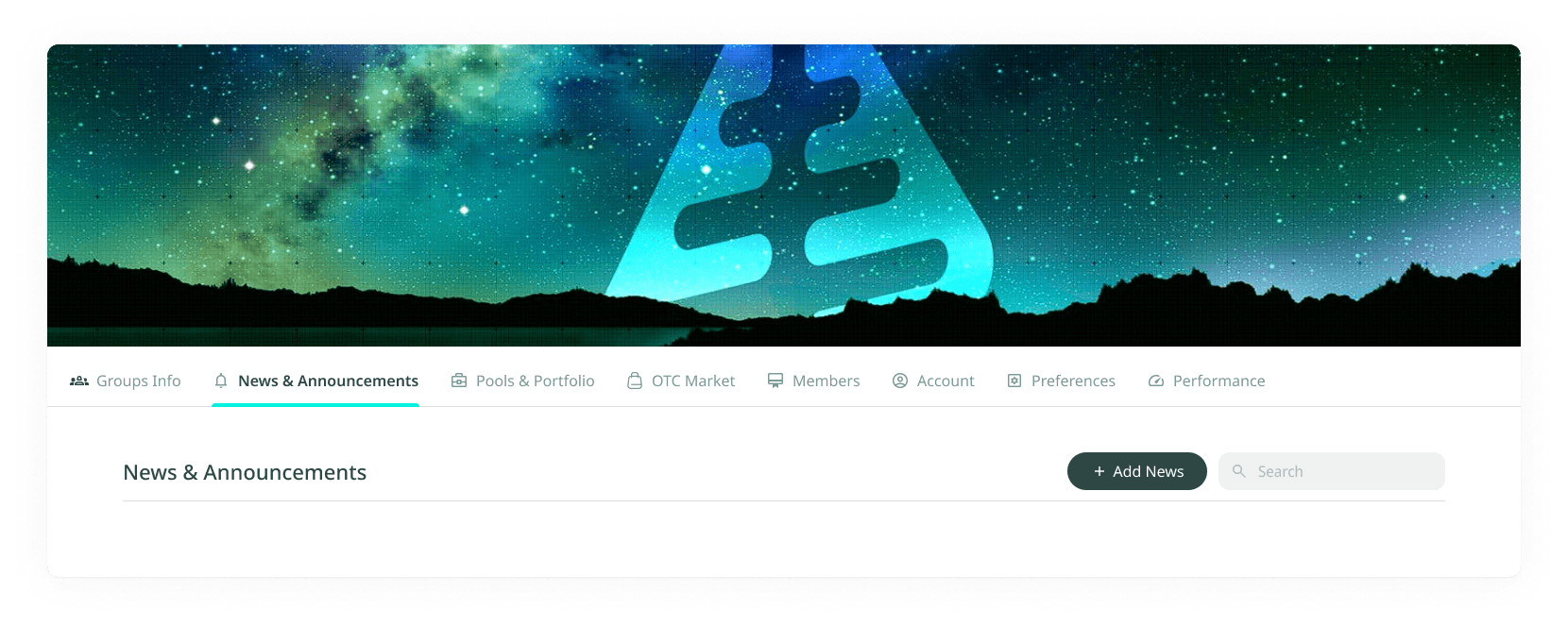
Click on Groups in the main menu, click on the group you want to edit News & Announcements for, and click on the News & Announcements tab.
How to add a new Group News & Announcement
- Click + Add News / Announcement on the top right.
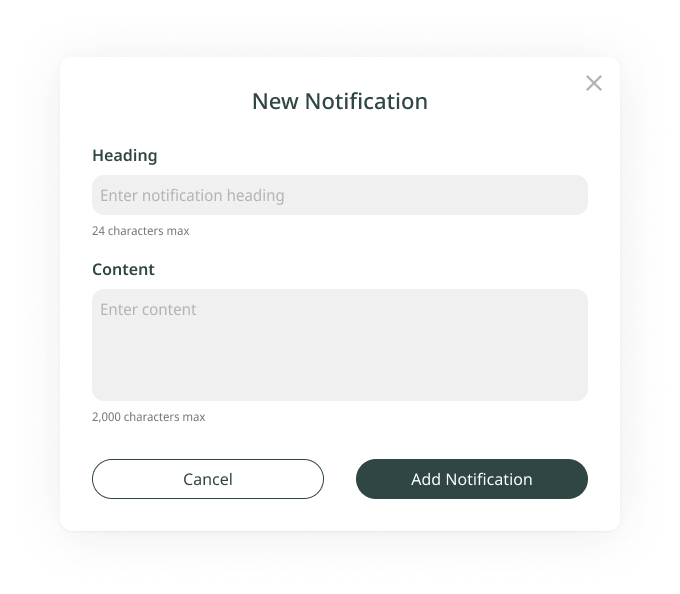
- Fill in the required text fields.
Required Fields
- Heading: News & Announcement title (max 24 characters).
- Content: News & Announcement message (max 2,000 characters).
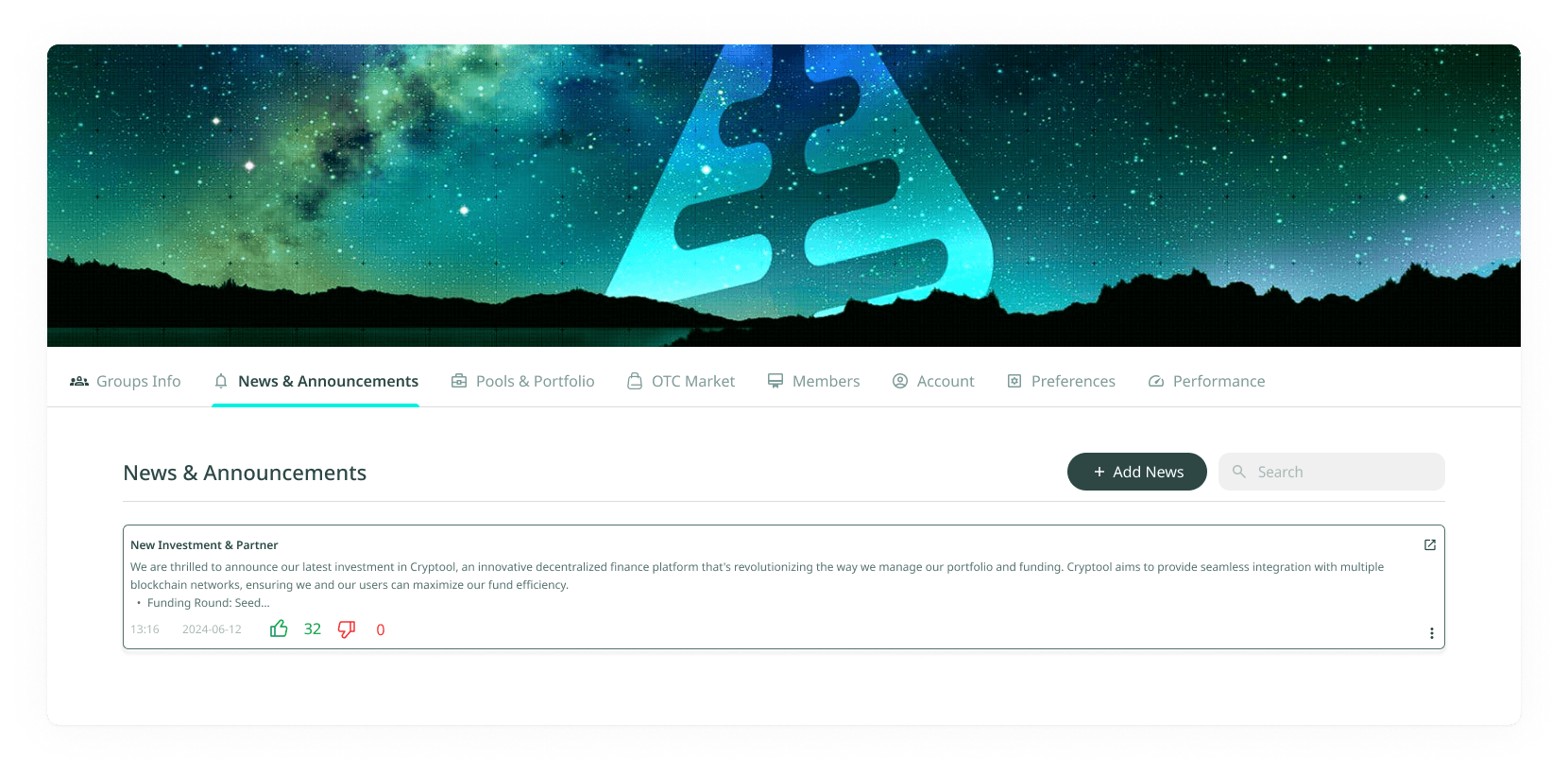
Click Add News & Announcement on the top right to save, or click X in the top right corner of the pop-up to leave without saving. The newly created News & Announcement will show up in the list.
How to set a Group Notification as latest news
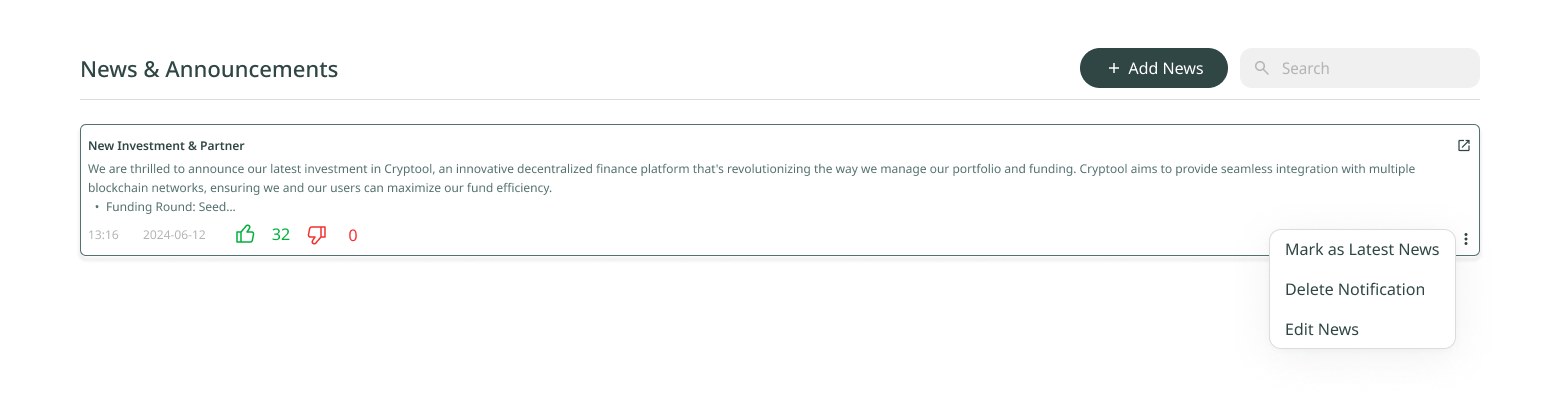
Click the three dots on the bottom right of the notification you want to edit and select Mark as Latest News. The notification will be moved to the top of the notifications list and marked with a yellow star in the top right corner.
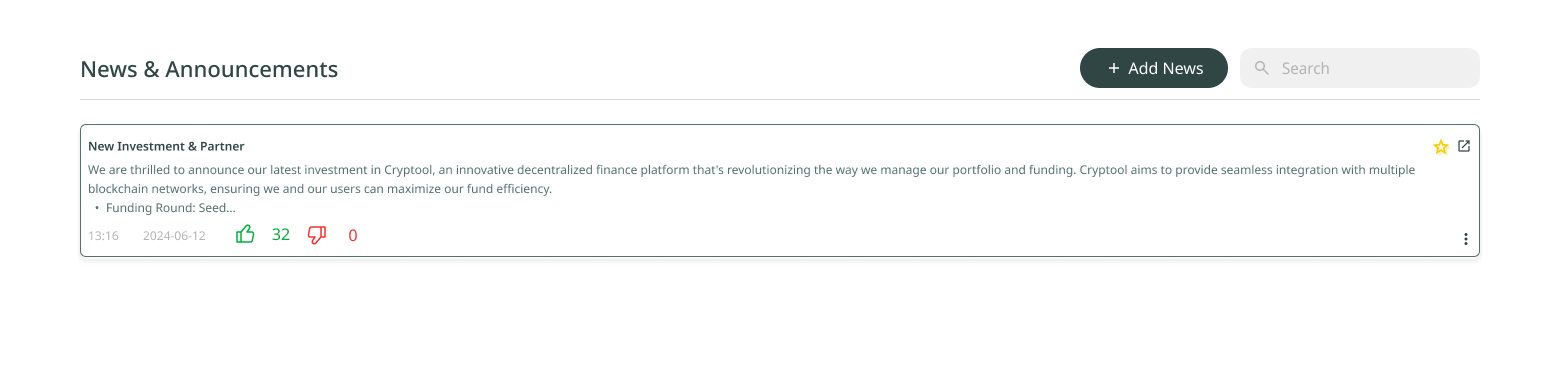
How to edit a Group Notification
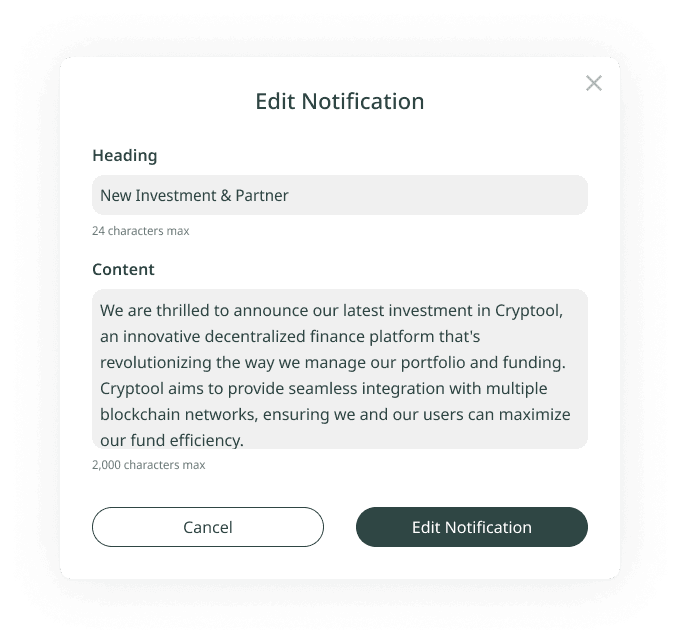
- Click the three dots on the bottom right of the notification you want to edit and select Edit Notification.
- Edit the text fields of the group notification as desired.
Required Fields
- Heading: notification title (max 24 characters).
- Content: notification message (max 2,000 characters).
Click Update Notification on the bottom to save, or click X in the top right corner of the pop-up to leave without saving.
How to delete a Group Notification
Click the bin icon on the bottom right of the notification you want to delete. The notification will be removed from the list.
'%3e%3cpath%20d='M3.58464%2016.6693C3.1263%2016.6693%202.73394%2016.5061%202.40755%2016.1797C2.08116%2015.8533%201.91797%2015.4609%201.91797%2015.0026V5.0026C1.91797%204.54427%202.08116%204.15191%202.40755%203.82552C2.73394%203.49913%203.1263%203.33594%203.58464%203.33594H16.918C17.3763%203.33594%2017.7687%203.49913%2018.0951%203.82552C18.4214%204.15191%2018.5846%204.54427%2018.5846%205.0026V15.0026C18.5846%2015.4609%2018.4214%2015.8533%2018.0951%2016.1797C17.7687%2016.5061%2017.3763%2016.6693%2016.918%2016.6693H3.58464ZM10.2513%2010.8359L16.918%206.66927V5.0026L10.2513%209.16927L3.58464%205.0026V6.66927L10.2513%2010.8359Z'%20fill='%232F4644'/%3e%3c/g%3e%3c/svg%3e)


'%3e%3cpath%20d='M17.6986%203.85159L15.058%2016.3047C14.8587%2017.1836%2014.3392%2017.4024%2013.6009%2016.9883L9.57749%2014.0235L7.63608%2015.8906C7.42124%2016.1055%207.24155%2016.2852%206.82749%2016.2852L7.11655%2012.1875L14.5736%205.44924C14.8978%205.16018%2014.5033%205.00002%2014.0697%205.28909L4.85093%2011.0938L0.882175%209.85159C0.0188933%209.58205%200.00326826%208.9883%201.06186%208.57424L16.5853%202.59377C17.3041%202.32424%2017.933%202.75393%2017.6986%203.85159Z'%20fill='%232F4644'/%3e%3c/g%3e%3cdefs%3e%3cclipPath%20id='clip0_17601_246206'%3e%3crect%20width='17.5'%20height='20'%20fill='white'%20transform='translate(0.25)'/%3e%3c/clipPath%3e%3c/defs%3e%3c/svg%3e)