
Group Members Tiers
Please note that this document will be updated periodically.
This feature is only available if you have a role with the relevant rights according to the group settings.
Edit Group Member Tiers
How to access Group Member Tiers
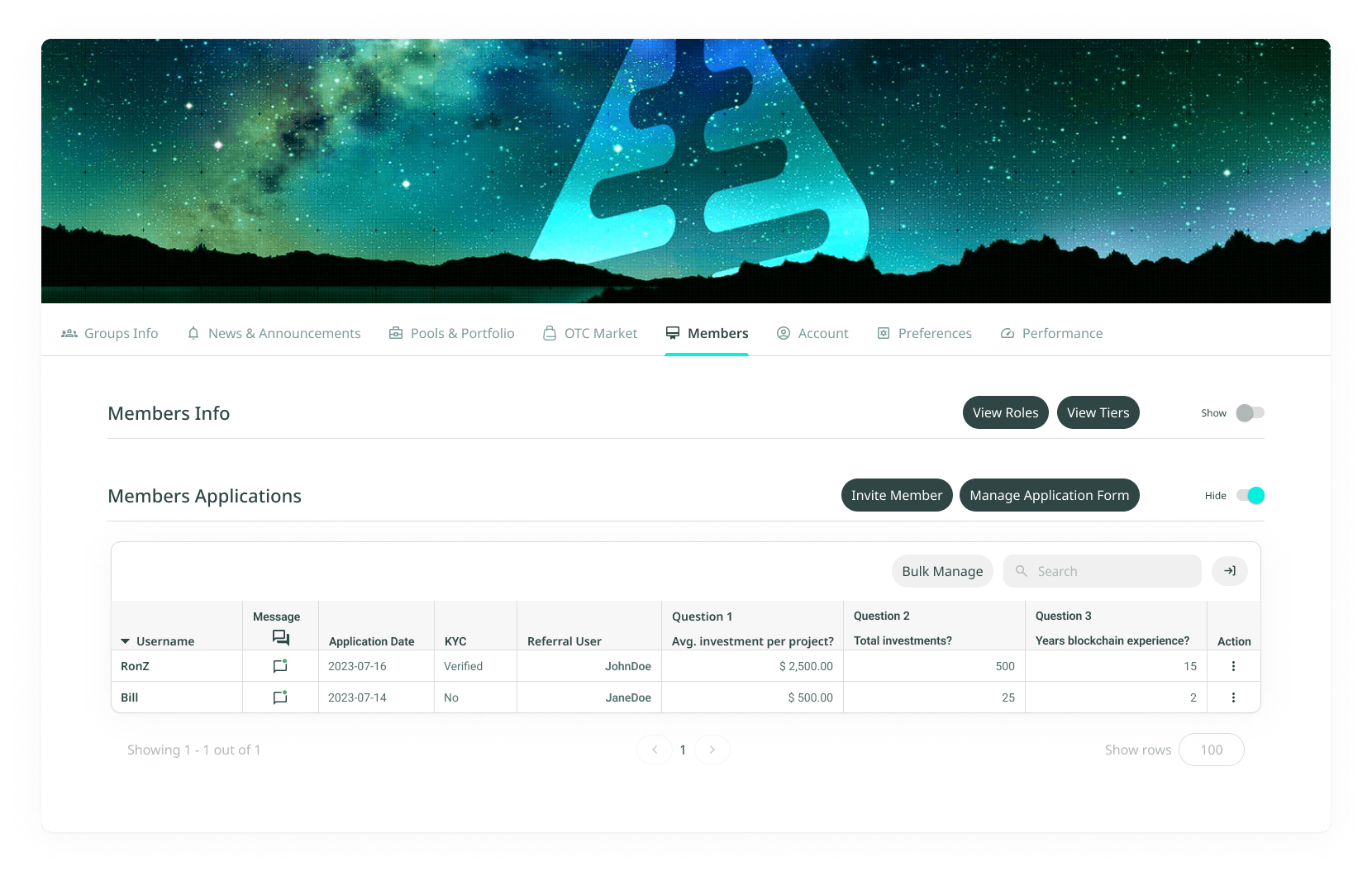
Click on Groups in the main menu, click on the group you want to edit member tiers for, click on the Members tab under the group banner image, and then click on View Tiers.
How to add a new Group Member Tier
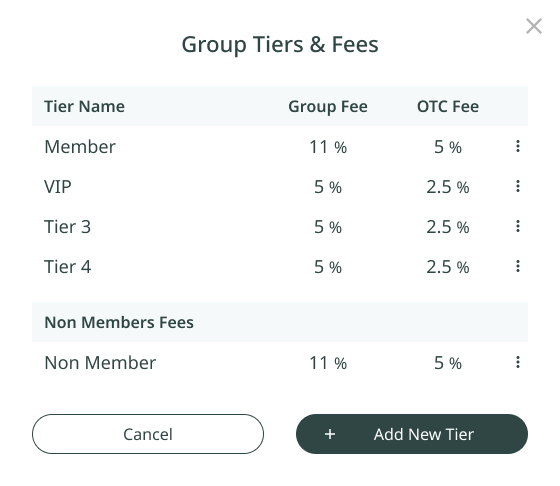
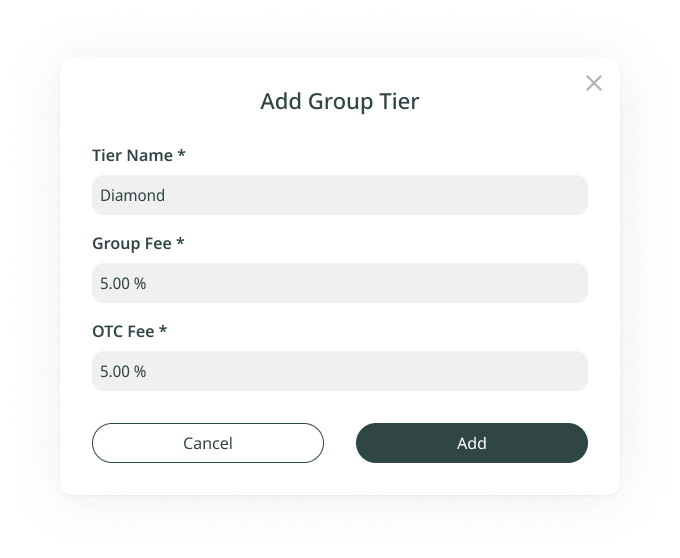
Type the name and the percentage fee for the new member tier in the text fields and click + Add this tier.
Important
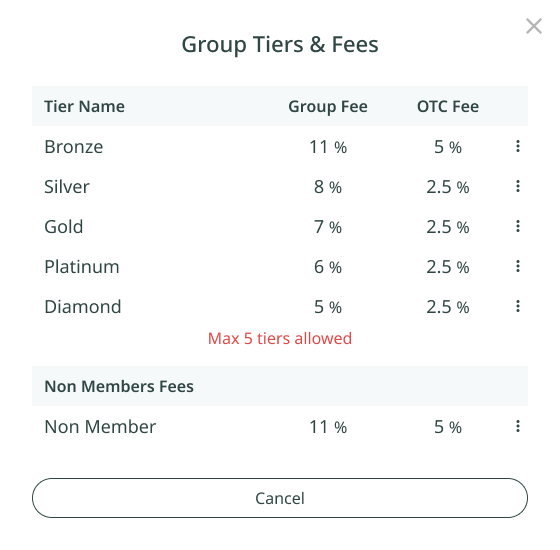
- A group can include up to 5 tiers.
- The minimum group fee percentage for the Raise Module is 2%.
How to edit or delete an existing Group Member Tier
Click the Action icon next to the tier to get the available actions:
- Edit: enter the new name and/or fee percentage in the text fields, then click Save to confirm the changes.
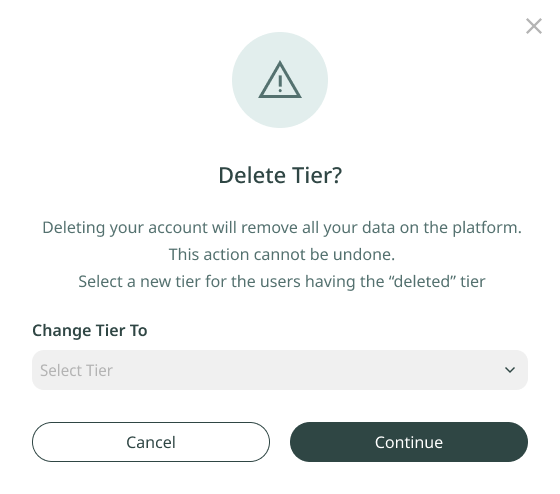
- Delete: select Delete, then choose the tier to transfer all current members to, and confirm the deletion.
Important
- The Non-Member tier cannot be deleted, it is reserved for default use in public group events or pools.
- All users assigned to a deleted tier will automatically be set to the default Member tier if no other tier is selected.
Assign a Group Tier to a Member
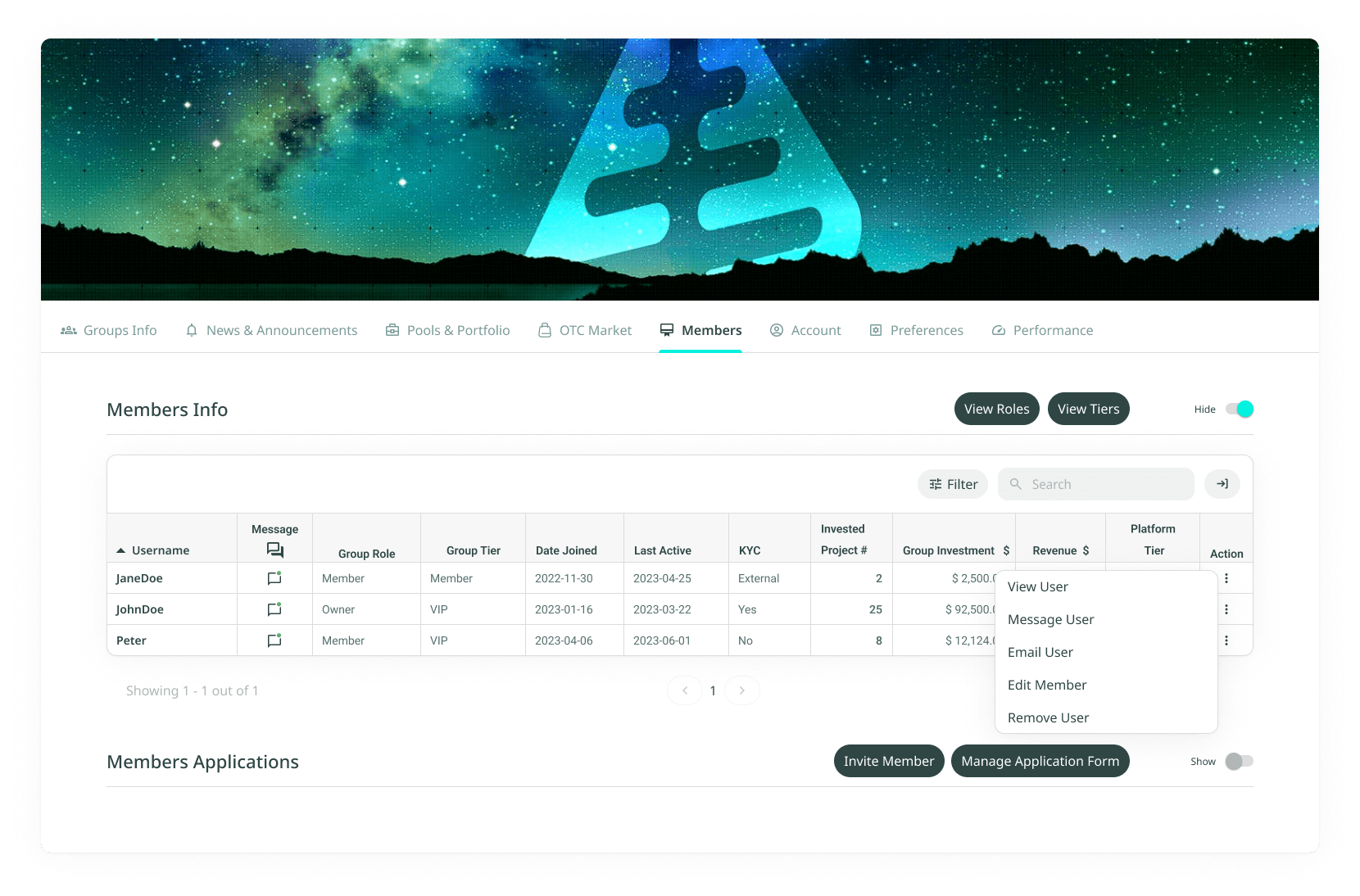
How to assign a Group Tier to a member
- Navigate to the Group Member page: go to the Members section in the designated group.
- Find the member: view the list of group members. Use the search or filter options to quickly locate the member you want to assign a tier to.
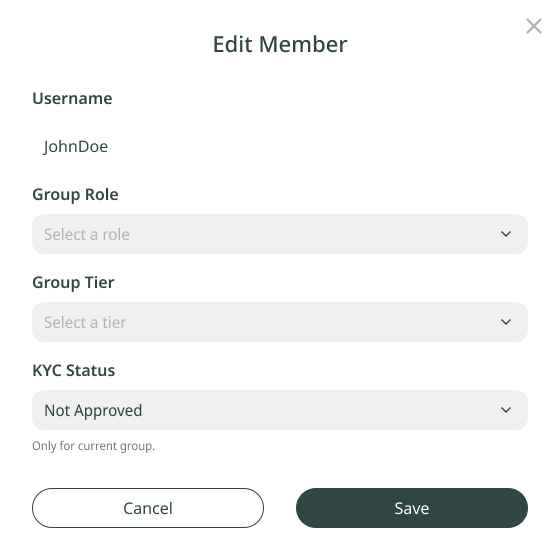
- Edit Member Tier: click the Action button next to the member's name on the right of the column. A dropdown will appear with the Edit Member function.
- Select the tier: choose the appropriate Group Tier from the list. Available tiers may include Admin, Member, or custom tiers depending on your group settings.
- Save changes: after selecting the desired tier, click Save to assign the tier to the member.
Confirmation
The member's tier will now be updated, and they will have the corresponding permissions based on the new tier.
Important
- Only users with appropriate permissions (Admin, Group Owner) can assign or change tiers.
- Ensure the tier you assign aligns with the responsibilities and permissions the member should have in the group.
'%3e%3cpath%20d='M3.58464%2016.6693C3.1263%2016.6693%202.73394%2016.5061%202.40755%2016.1797C2.08116%2015.8533%201.91797%2015.4609%201.91797%2015.0026V5.0026C1.91797%204.54427%202.08116%204.15191%202.40755%203.82552C2.73394%203.49913%203.1263%203.33594%203.58464%203.33594H16.918C17.3763%203.33594%2017.7687%203.49913%2018.0951%203.82552C18.4214%204.15191%2018.5846%204.54427%2018.5846%205.0026V15.0026C18.5846%2015.4609%2018.4214%2015.8533%2018.0951%2016.1797C17.7687%2016.5061%2017.3763%2016.6693%2016.918%2016.6693H3.58464ZM10.2513%2010.8359L16.918%206.66927V5.0026L10.2513%209.16927L3.58464%205.0026V6.66927L10.2513%2010.8359Z'%20fill='%232F4644'/%3e%3c/g%3e%3c/svg%3e)


'%3e%3cpath%20d='M17.6986%203.85159L15.058%2016.3047C14.8587%2017.1836%2014.3392%2017.4024%2013.6009%2016.9883L9.57749%2014.0235L7.63608%2015.8906C7.42124%2016.1055%207.24155%2016.2852%206.82749%2016.2852L7.11655%2012.1875L14.5736%205.44924C14.8978%205.16018%2014.5033%205.00002%2014.0697%205.28909L4.85093%2011.0938L0.882175%209.85159C0.0188933%209.58205%200.00326826%208.9883%201.06186%208.57424L16.5853%202.59377C17.3041%202.32424%2017.933%202.75393%2017.6986%203.85159Z'%20fill='%232F4644'/%3e%3c/g%3e%3cdefs%3e%3cclipPath%20id='clip0_17601_246206'%3e%3crect%20width='17.5'%20height='20'%20fill='white'%20transform='translate(0.25)'/%3e%3c/clipPath%3e%3c/defs%3e%3c/svg%3e)