
Group Members
Please note that this document will be updated periodically.
This feature is only available if you have a role with the relevant rights according to the group settings.
Invite New Group Members
How to invite a new group member
Click on Invite Member on the top right of the Members Application section.
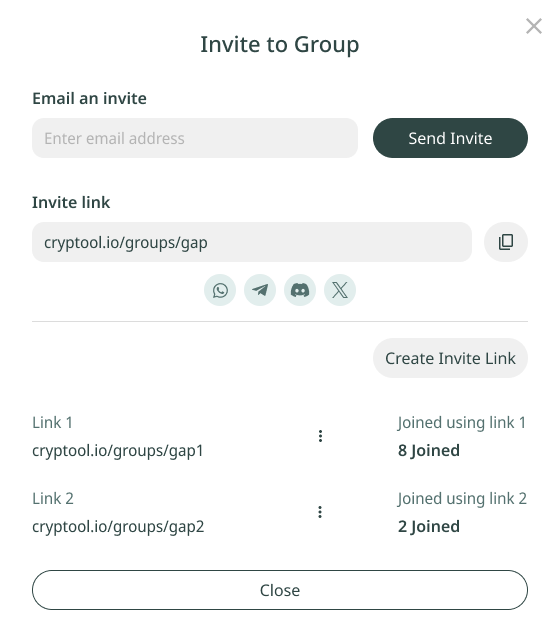
Enter the email address of the new member you want to add and click Send Invite to send them the invite. You can also copy the invite link and send it to the new member via chat.
How to generate an invite link
Click Create Invite Link, then:
- Copy this link and share it via chat or other platforms.
- Use the link to track how many users join through it.
Manage Member Applications
How to review and accept member applications
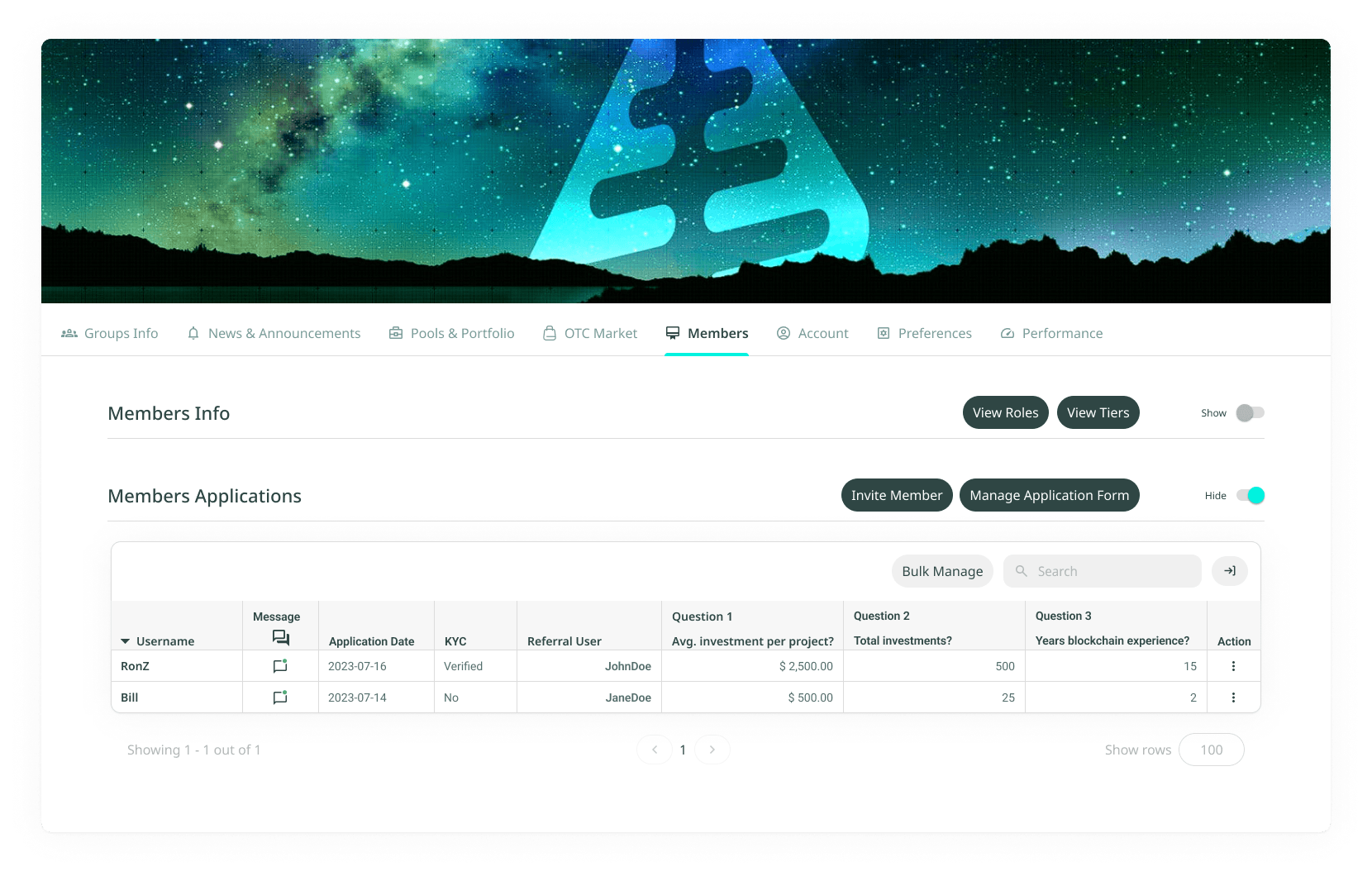
On the Application View page, you can review and manage applications submitted by users. Click on Groups in the main menu, click on the group you want to manage, click on the Members tab under the group banner image, and scroll down to the Members Application section.
What you can do
- View Applicant Username: see the username of the applicant for quick identification.
- Send Message: directly message the applicant for additional details or follow-up.
- See Application Data: review all the details submitted by the applicant in their application.
- Check Current Platform KYC Status: verify if the applicant has completed their KYC (Know Your Customer) process.
- See Referral Ambassador: identify the ambassador who referred the applicant.
- View Allocation Form Questions: access any custom questions you included in the allocation form and the applicant's responses.
- Perform Action: perform a specific member action (if you have the rights and permissions).
Available actions
- View User: access and review the user's profile or details.
- Message User: send an on-platform message to the user.
- Email User: send an email directly to the user's registered email address.
- Accept Applicant: approve the user's application or request to join.
- Deny Applicant: reject the user's application or request to join.
How to manage the member application form
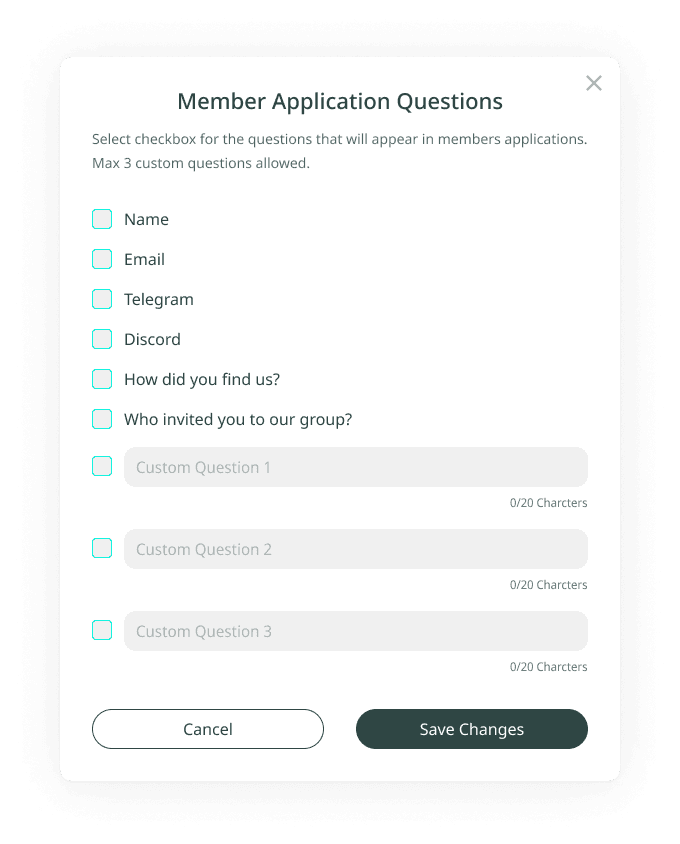
- Click Manage Application Form on the top right of the Members Application section.
- Check the standard questions you want to show up in the member application form. You can also add up to 3 custom questions.
- Click Save Changes.
When a member submits an application through the form, they will show up in the Member Applications list.
Manage Existing Members
What you can do on the Group Member page
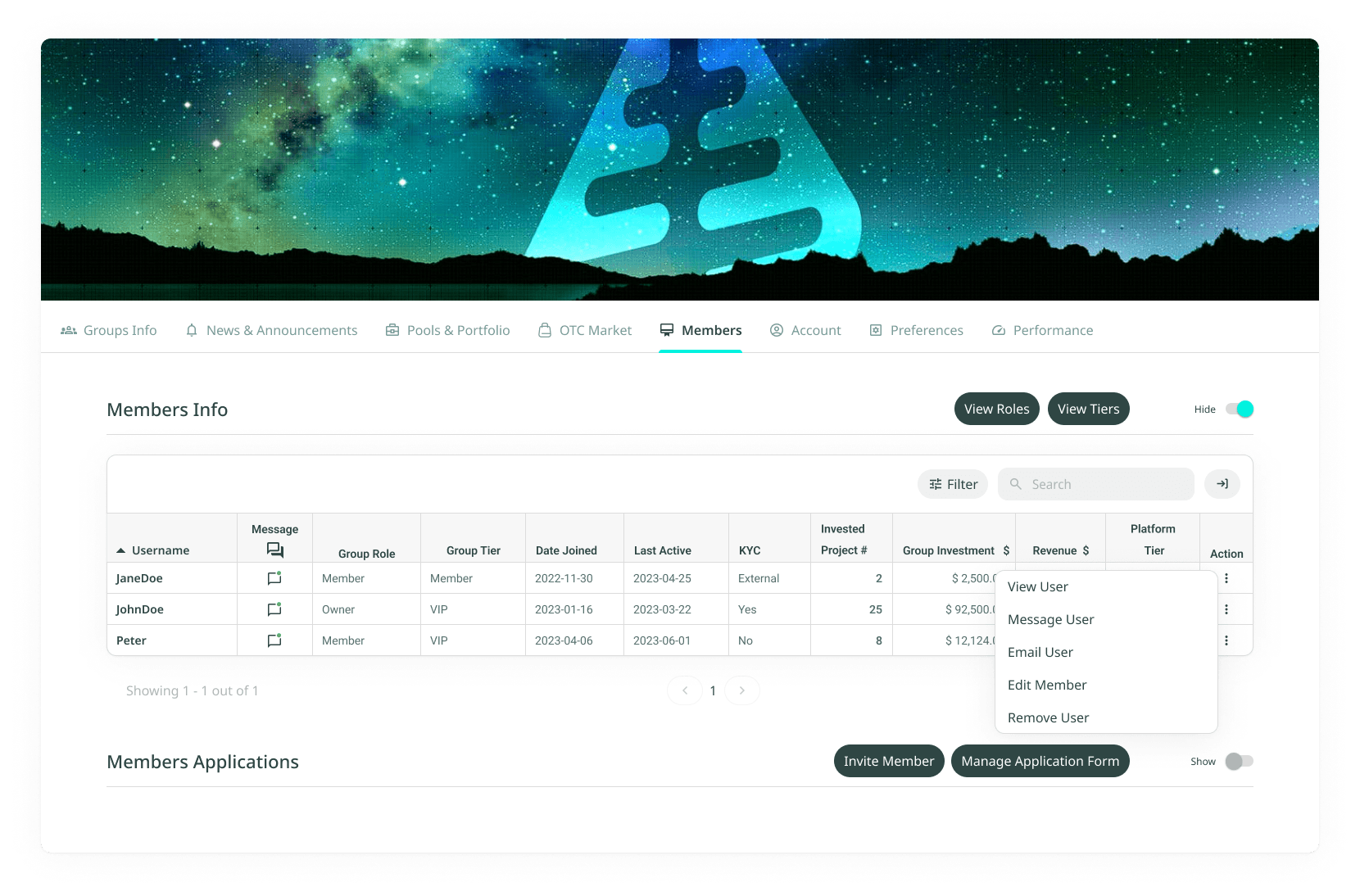
On the Group Member page, you can manage your group's members efficiently.
- View Members: see a complete list of all group members.
- See Members' Total Invested Projects: review the total projects a member has invested in within the group.
- See Members' Total Group Investment: view the total amount a member has invested within your group.
- See Members' Revenue Generation: analyse the revenue a member has generated for the group.
- See Members' Current Platform Subscription Tier: check their subscription level on the platform.
- See Members' Current Group Role / Tier: identify their assigned role or tier within the group.
- Perform Action: perform a specific member action (if you have the rights and permissions).
Available member actions
- View Member: view the user's profile details.
- Message User: send a message to the user directly within the platform.
- Email User: send an email to the user's registered email address.
- Edit Member: update:
- Role: see Assign Group Role.
- Tier: see Assign Group Tier.
- KYC Status: modify or update the user's Know Your Customer (KYC) verification status.
- Remove Member: remove the user from the group without banning them.
- Ban: permanently ban the user and remove them from the platform.
'%3e%3cpath%20d='M3.58464%2016.6693C3.1263%2016.6693%202.73394%2016.5061%202.40755%2016.1797C2.08116%2015.8533%201.91797%2015.4609%201.91797%2015.0026V5.0026C1.91797%204.54427%202.08116%204.15191%202.40755%203.82552C2.73394%203.49913%203.1263%203.33594%203.58464%203.33594H16.918C17.3763%203.33594%2017.7687%203.49913%2018.0951%203.82552C18.4214%204.15191%2018.5846%204.54427%2018.5846%205.0026V15.0026C18.5846%2015.4609%2018.4214%2015.8533%2018.0951%2016.1797C17.7687%2016.5061%2017.3763%2016.6693%2016.918%2016.6693H3.58464ZM10.2513%2010.8359L16.918%206.66927V5.0026L10.2513%209.16927L3.58464%205.0026V6.66927L10.2513%2010.8359Z'%20fill='%232F4644'/%3e%3c/g%3e%3c/svg%3e)


'%3e%3cpath%20d='M17.6986%203.85159L15.058%2016.3047C14.8587%2017.1836%2014.3392%2017.4024%2013.6009%2016.9883L9.57749%2014.0235L7.63608%2015.8906C7.42124%2016.1055%207.24155%2016.2852%206.82749%2016.2852L7.11655%2012.1875L14.5736%205.44924C14.8978%205.16018%2014.5033%205.00002%2014.0697%205.28909L4.85093%2011.0938L0.882175%209.85159C0.0188933%209.58205%200.00326826%208.9883%201.06186%208.57424L16.5853%202.59377C17.3041%202.32424%2017.933%202.75393%2017.6986%203.85159Z'%20fill='%232F4644'/%3e%3c/g%3e%3cdefs%3e%3cclipPath%20id='clip0_17601_246206'%3e%3crect%20width='17.5'%20height='20'%20fill='white'%20transform='translate(0.25)'/%3e%3c/clipPath%3e%3c/defs%3e%3c/svg%3e)