
Group Members Roles
Please note that this document will be updated periodically.
This feature is only available if you have a role with the relevant rights according to the group settings.
Edit Group Roles
How to access Group Member Roles
Click on Groups in the main menu, click on View Group for the group you want to edit roles for, click on the Members tab under the group banner image, and then click View Roles on the top right. Default roles are Admin and Member.
What you can do as a group creator
As a group creator, you have the power to structure your team by creating distinct roles and assigning specific rights to each role. This feature allows you to:
- Define roles: create roles that reflect the various responsibilities and hierarchies within your group.
- Assign permissions: customise the access levels and capabilities of each role to ensure efficient and secure management of group activities.
- Streamline operations: by clearly delineating roles and permissions, you can streamline workflows, enhance collaboration, and maintain control over sensitive information.
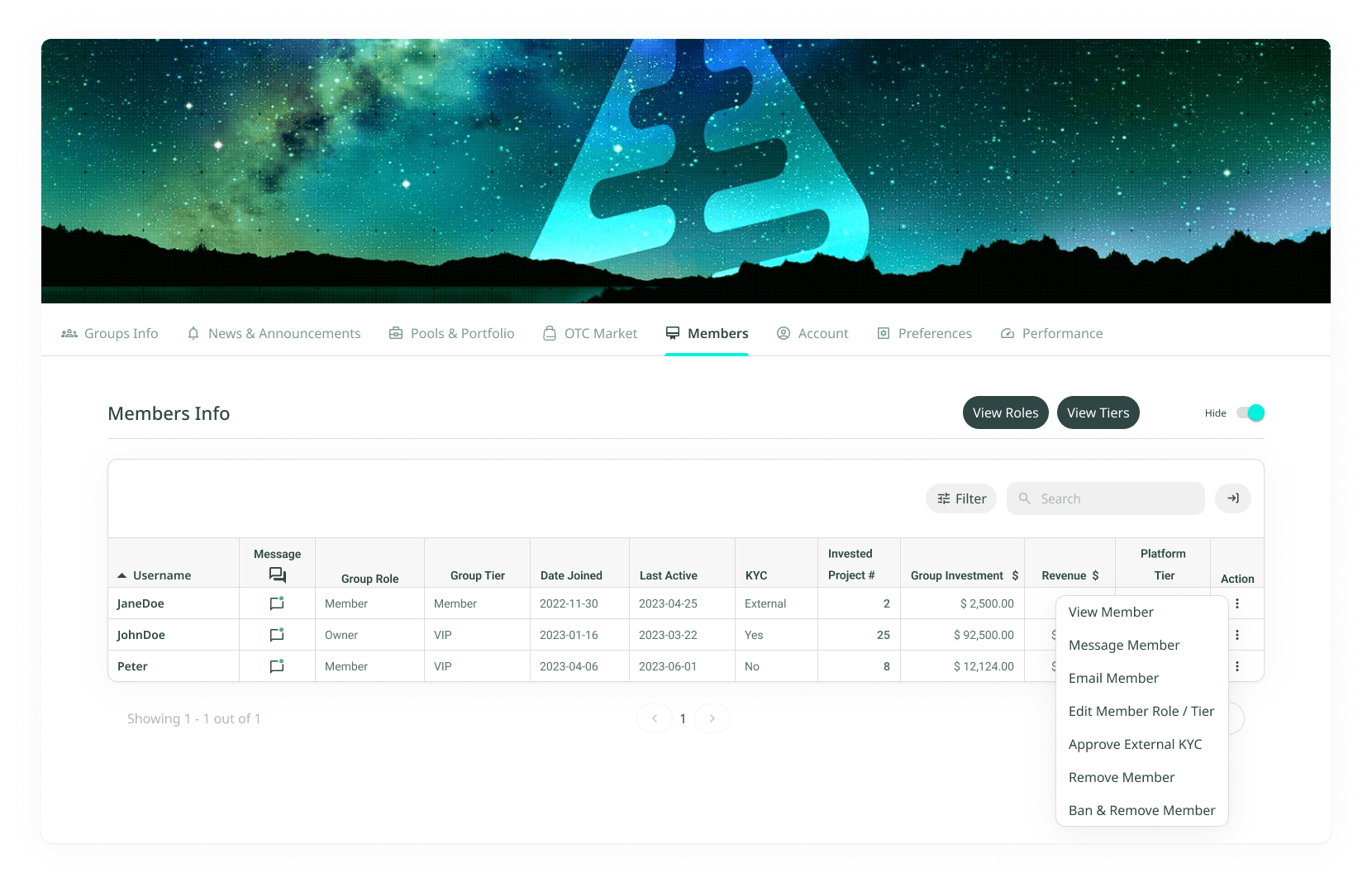
How to add a new Group Member Role
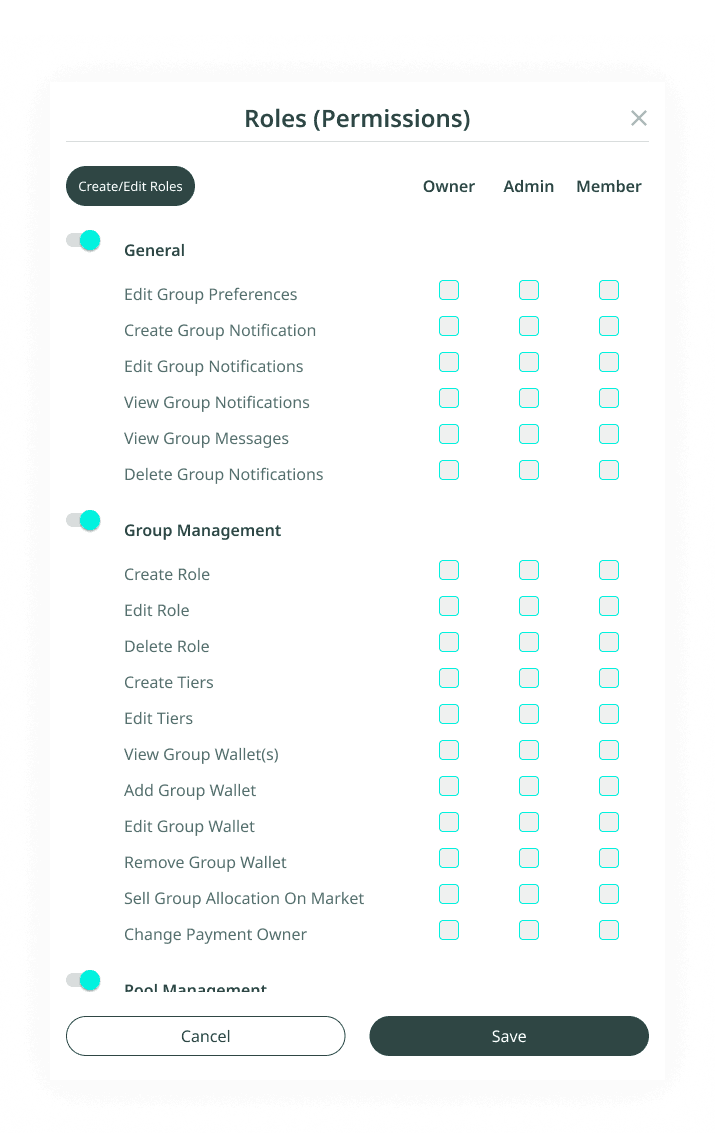
- Click Create / Edit Role on the top left.
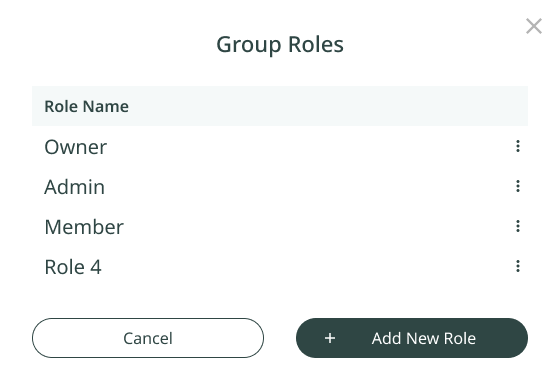
- Click + Add New Role on the new pop-up.
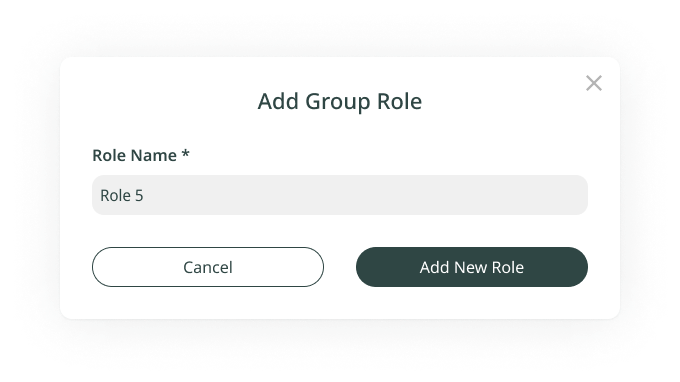
- Type the name of the new role in the text field and click + Add this role.
Important
A group can have a maximum of 5 roles.
How to edit or delete existing roles
Click the Action icon next to the role to get the available actions:
- Edit: modify the name of an existing role in the text field and click Save.
- Delete: remove an existing role permanently.
Important
All users assigned to a deleted role will automatically be set to the default Member role.
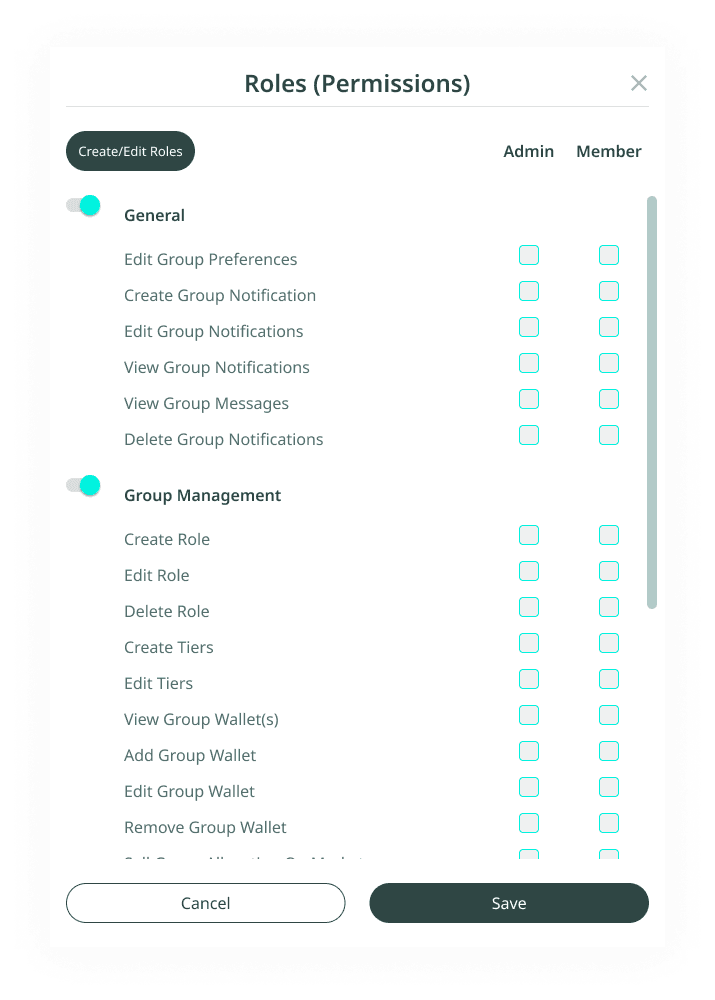
How to define or edit permissions for a Group Member Role
In the Roles (Permissions) view, tick all the permissions you want the role to have and click Save.
Assign a Group Role to a Member
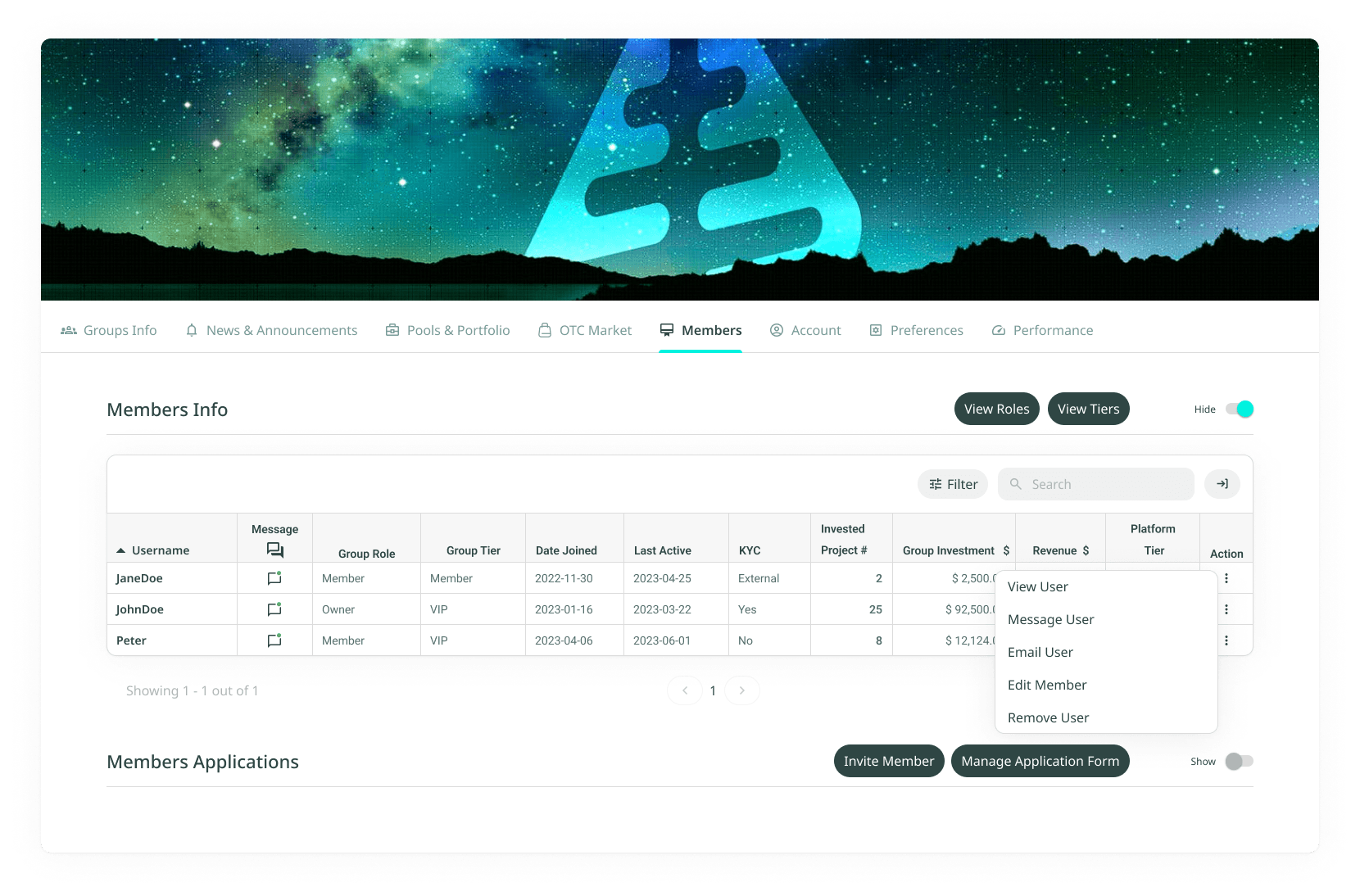
How to assign a Group Role to a member
- Navigate to the Group Member page: go to the Members section in the designated group.
- Find the member: view the list of group members. Use the search or filter options to quickly locate the member you want to assign a role to.
- Edit Member Role: click the Action button next to the member's name on the right of the column. A dropdown will appear with the Edit Member function.
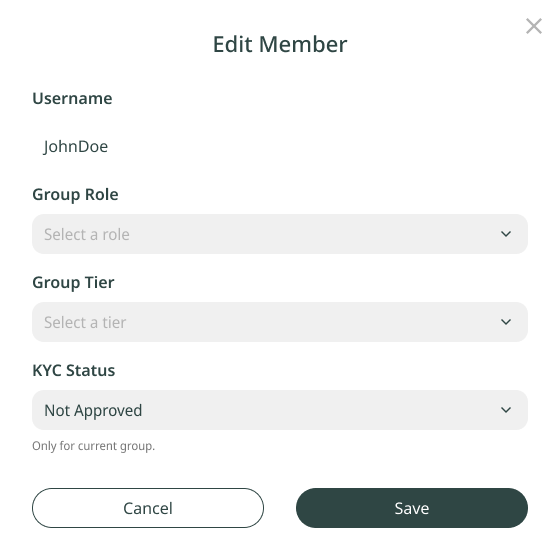
- Select the role: choose the appropriate Group Role from the list. Available roles may include Admin, Member, or custom roles depending on your group settings.
- Save changes: after selecting the desired role, click Save to assign the role to the member.
Confirmation
The member's role will now be updated, and they will have the corresponding permissions based on the new role.
Important
- Only users with appropriate permissions (Admin, Group Owner) can assign or change roles.
- Ensure the role you assign aligns with the responsibilities and permissions the member should have in the group.
'%3e%3cpath%20d='M3.58464%2016.6693C3.1263%2016.6693%202.73394%2016.5061%202.40755%2016.1797C2.08116%2015.8533%201.91797%2015.4609%201.91797%2015.0026V5.0026C1.91797%204.54427%202.08116%204.15191%202.40755%203.82552C2.73394%203.49913%203.1263%203.33594%203.58464%203.33594H16.918C17.3763%203.33594%2017.7687%203.49913%2018.0951%203.82552C18.4214%204.15191%2018.5846%204.54427%2018.5846%205.0026V15.0026C18.5846%2015.4609%2018.4214%2015.8533%2018.0951%2016.1797C17.7687%2016.5061%2017.3763%2016.6693%2016.918%2016.6693H3.58464ZM10.2513%2010.8359L16.918%206.66927V5.0026L10.2513%209.16927L3.58464%205.0026V6.66927L10.2513%2010.8359Z'%20fill='%232F4644'/%3e%3c/g%3e%3c/svg%3e)


'%3e%3cpath%20d='M17.6986%203.85159L15.058%2016.3047C14.8587%2017.1836%2014.3392%2017.4024%2013.6009%2016.9883L9.57749%2014.0235L7.63608%2015.8906C7.42124%2016.1055%207.24155%2016.2852%206.82749%2016.2852L7.11655%2012.1875L14.5736%205.44924C14.8978%205.16018%2014.5033%205.00002%2014.0697%205.28909L4.85093%2011.0938L0.882175%209.85159C0.0188933%209.58205%200.00326826%208.9883%201.06186%208.57424L16.5853%202.59377C17.3041%202.32424%2017.933%202.75393%2017.6986%203.85159Z'%20fill='%232F4644'/%3e%3c/g%3e%3cdefs%3e%3cclipPath%20id='clip0_17601_246206'%3e%3crect%20width='17.5'%20height='20'%20fill='white'%20transform='translate(0.25)'/%3e%3c/clipPath%3e%3c/defs%3e%3c/svg%3e)