
User Support
Please note that this document will be updated periodically.
Manage User Support
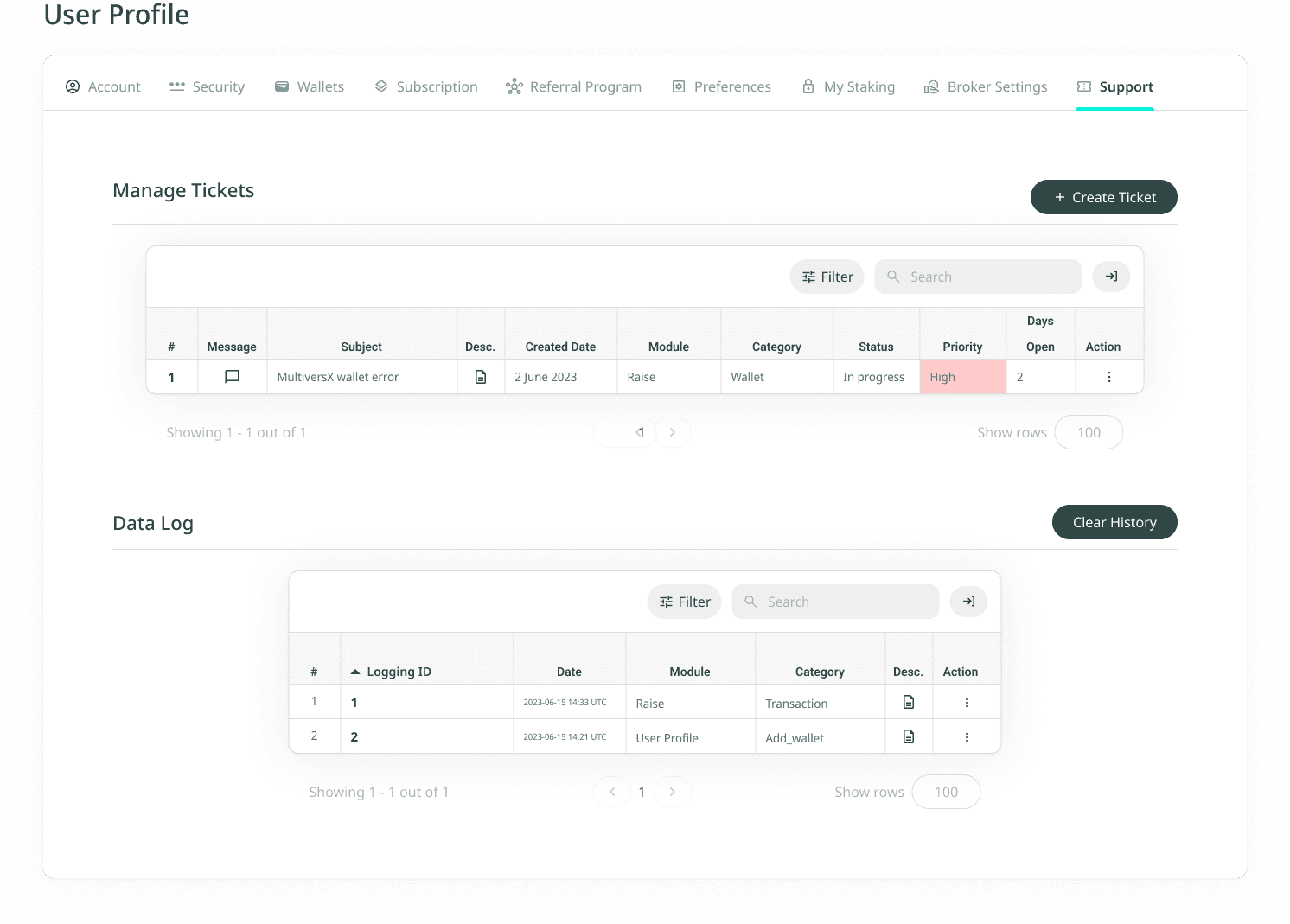
The Support tab is where you create, view, update, and close support tickets, plus review the historical Data Log of resolved tickets.
Support Tickets
How to access User Support
Click on the person icon on the top right, select View Profile from the dropdown, and click on the Support tab.
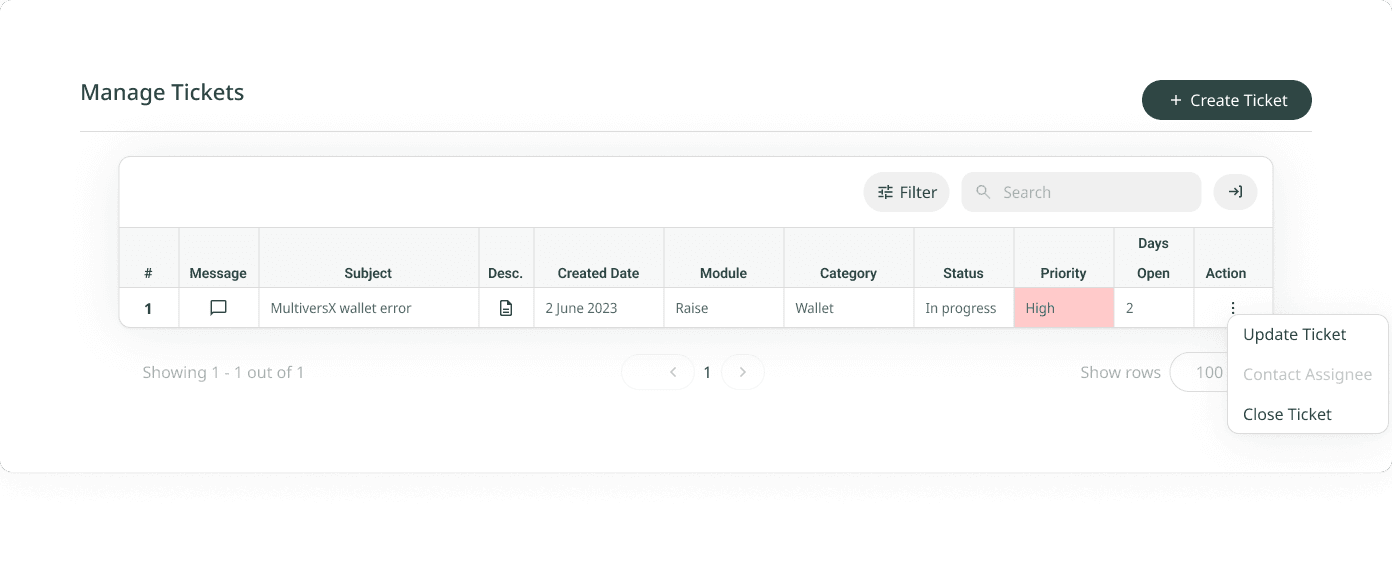
Manage Tickets: shows your active tickets with the following columns:
- # (Ticket Number)
- Message
- Description
- Created Date
- Module
- Category
- Status
- Priority
- Days Open
- Action
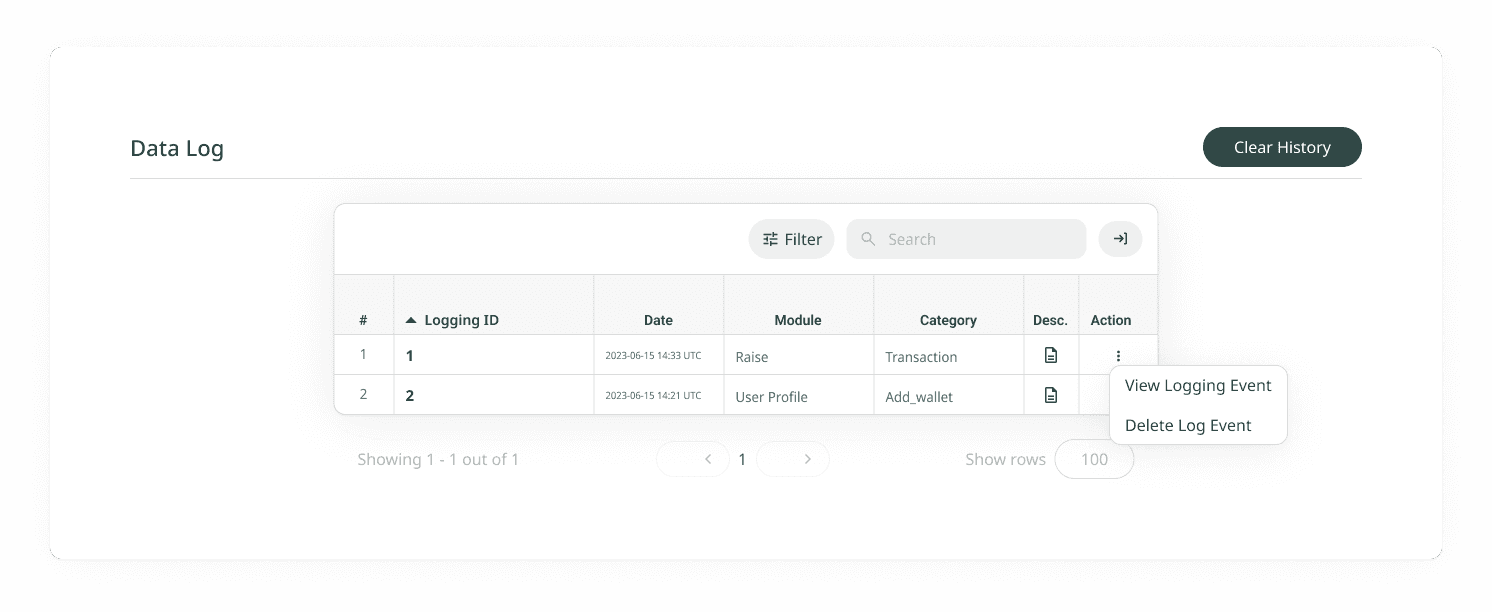
Data Log: shows your closed / historical tickets with the following columns:
- # (Ticket Number)
- Logging ID
- Date
- Module
- Category
- Description
- Action
How to create a new ticket
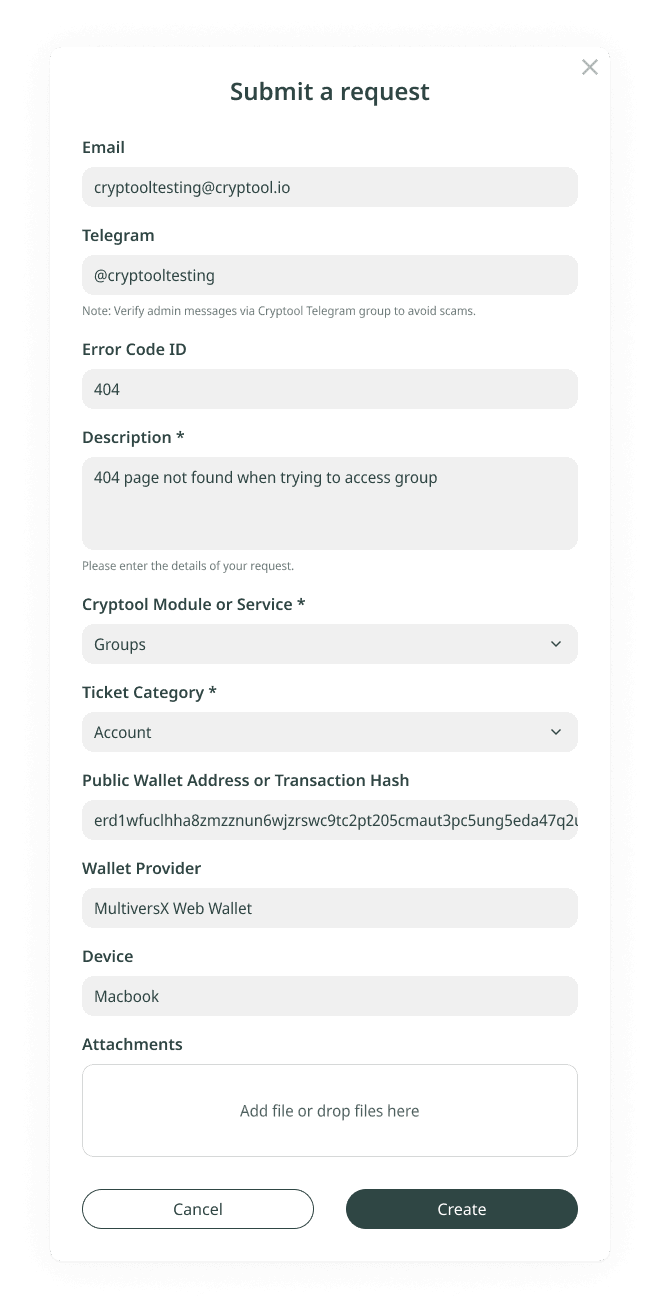
Click on Create Ticket and fill in the requested info in the pop-up:
- Your email address
- Telegram
- Error Code ID
- Description
- Cryptool Module or Service
- Ticket Category
- Public Wallet or Transaction Hash
- Wallet Provider
- Device
- Attachments
Click Save and your newly created ticket will show up in the Manage Tickets table.
How to view a ticket
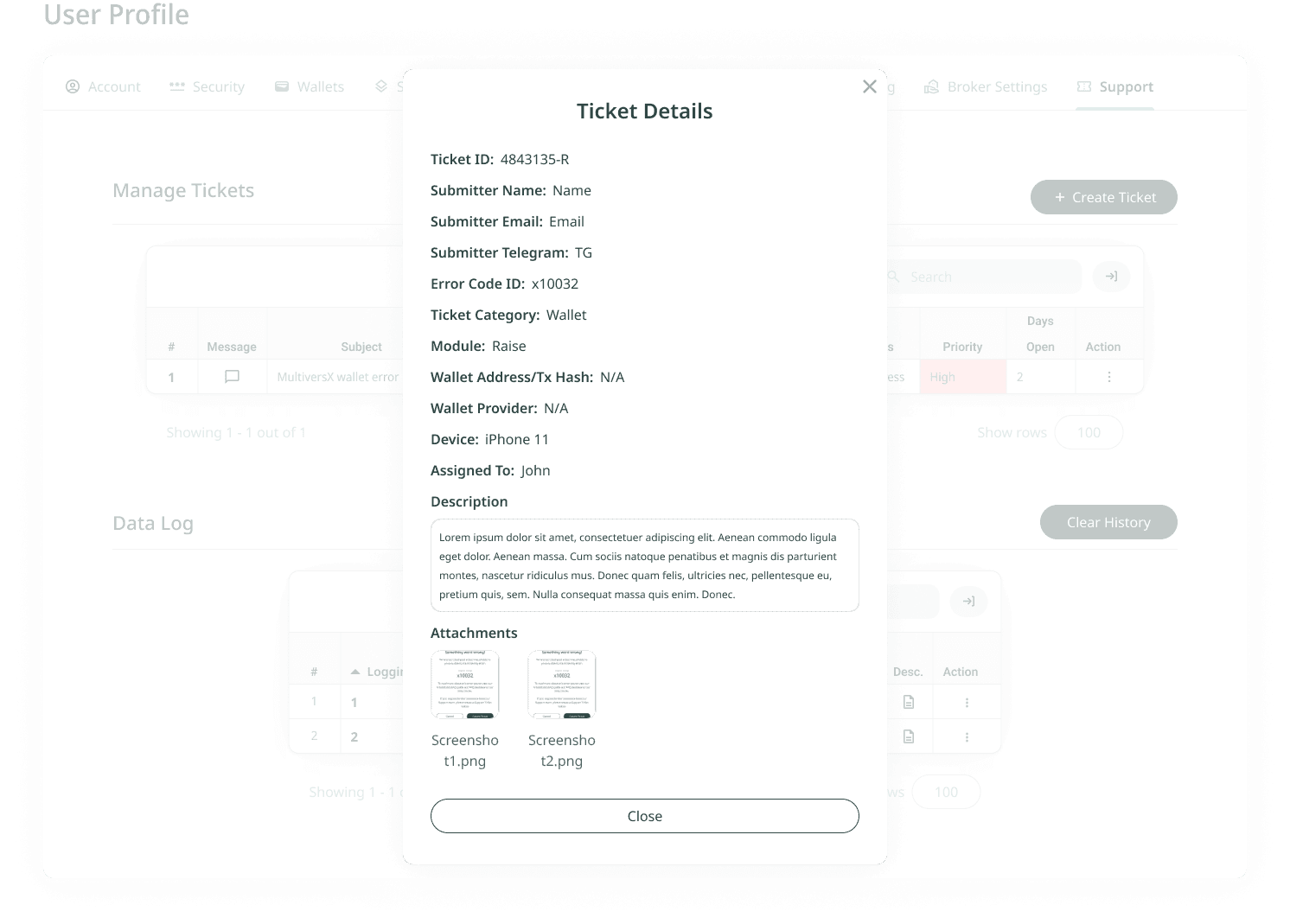
In either table, click the icon in the Desc column for the ticket you want to view. The ticket details pop-up shows:
- Submitter Name
- Submitter Email
- Submitter Telegram
- Ticket ID
- Error Code ID
- Ticket Category
- Module
- Wallet Address / Transaction Hash
- Wallet Provider
- Device
- Assigned To
- Description
- Attachments
How to update a ticket
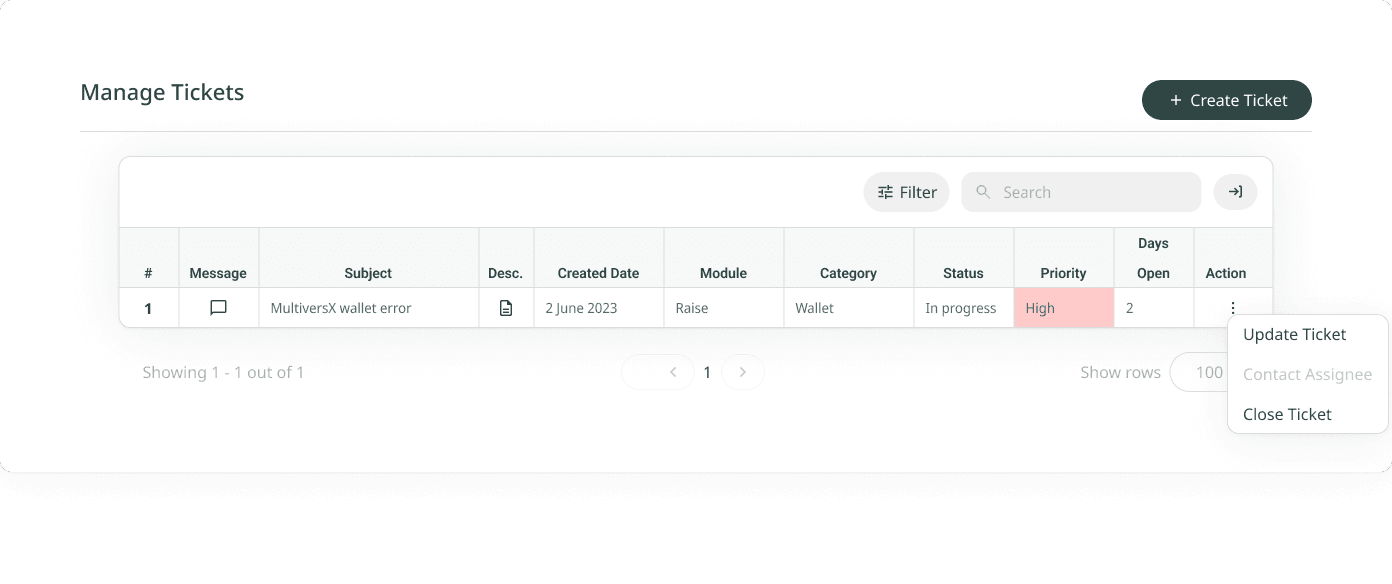
In the Manage Tickets table, click the three dots in the rightmost Action column for the ticket you want to update and select Update Ticket. Update the info in the pop-up and click Save.
How to close a ticket
In the Manage Tickets table, click the three dots in the rightmost Action column for the ticket and select Close Ticket.
Logging Events
How to view a logging event
In the Data Log table, click the three dots in the rightmost Action column for the ticket and select View Logging Event. A pop-up will show all the information on the corresponding ticket.
How to clear Data Log history
Click the Clear History button on the top right of the Data Log table, then click Confirm in the "Remove data log history" pop-up.
How to delete a specific log event
In the Data Log table, click the three dots in the rightmost Action column for the ticket and select Delete Log Event.
'%3e%3cpath%20d='M3.58464%2016.6693C3.1263%2016.6693%202.73394%2016.5061%202.40755%2016.1797C2.08116%2015.8533%201.91797%2015.4609%201.91797%2015.0026V5.0026C1.91797%204.54427%202.08116%204.15191%202.40755%203.82552C2.73394%203.49913%203.1263%203.33594%203.58464%203.33594H16.918C17.3763%203.33594%2017.7687%203.49913%2018.0951%203.82552C18.4214%204.15191%2018.5846%204.54427%2018.5846%205.0026V15.0026C18.5846%2015.4609%2018.4214%2015.8533%2018.0951%2016.1797C17.7687%2016.5061%2017.3763%2016.6693%2016.918%2016.6693H3.58464ZM10.2513%2010.8359L16.918%206.66927V5.0026L10.2513%209.16927L3.58464%205.0026V6.66927L10.2513%2010.8359Z'%20fill='%232F4644'/%3e%3c/g%3e%3c/svg%3e)


'%3e%3cpath%20d='M17.6986%203.85159L15.058%2016.3047C14.8587%2017.1836%2014.3392%2017.4024%2013.6009%2016.9883L9.57749%2014.0235L7.63608%2015.8906C7.42124%2016.1055%207.24155%2016.2852%206.82749%2016.2852L7.11655%2012.1875L14.5736%205.44924C14.8978%205.16018%2014.5033%205.00002%2014.0697%205.28909L4.85093%2011.0938L0.882175%209.85159C0.0188933%209.58205%200.00326826%208.9883%201.06186%208.57424L16.5853%202.59377C17.3041%202.32424%2017.933%202.75393%2017.6986%203.85159Z'%20fill='%232F4644'/%3e%3c/g%3e%3cdefs%3e%3cclipPath%20id='clip0_17601_246206'%3e%3crect%20width='17.5'%20height='20'%20fill='white'%20transform='translate(0.25)'/%3e%3c/clipPath%3e%3c/defs%3e%3c/svg%3e)